Edit ▶ Find...
 Edit ▶ Find...
Find
opens an interface to find text in the selected notebook.
Details
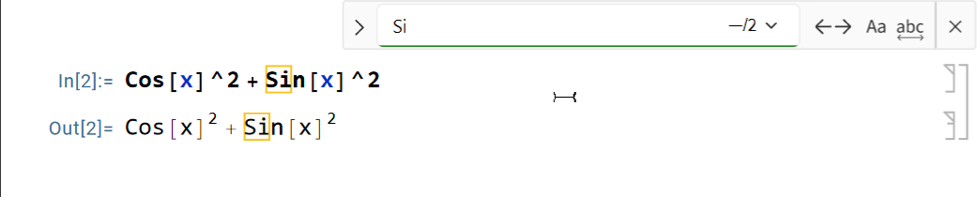
- The interface appears in the top-right corner of the notebook.
- Typing into the find field immediately updates the interface with the total number of matching found items.
- Items shown onscreen which match the find text will be immediately highlighted.
- If no items are found, this is indicated with a red zero in the count.
- The Find interface includes the following controls:
-
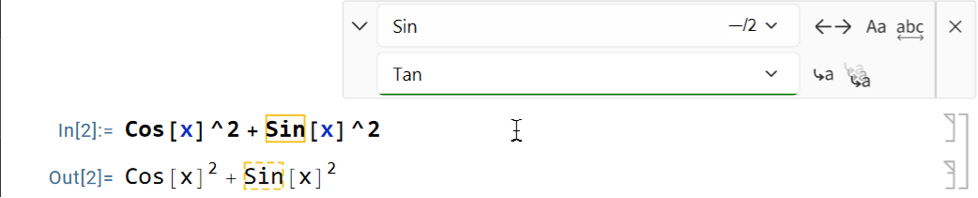
open the Replace portion of the interface / report the number of found instances of the given text open a history of previous find entries find the previous instance above the current selection find the next instance below the current selection toggle case‐sensitive find toggle whole word find close the Find interface - Pressing the opener for the Replace portion of the interface adds a Replace field and two Replace-specific controls.
- The Replace interface includes the following controls:
-
open a history of previous replace entries replace the current selected find result, if any, and move the selection to the next result replace all find results in the entire notebook - Replace will not replace text in cells generated by evaluation, including output, message and print cells. When the Replace interface is open, text found in generated cells will appear with a dashed border to indicate that it will not be replaced.
- The Find interface uses the global option FindSettings in order to save and restore default behaviors and search/replace strings.
- The Find interface searches the contents of cells only. Use Cell ▶ Cell Tags ▶ Find Cell Tag to search cell tags.