How to | Create an Instant Web Form
An instant web form lets you call Wolfram Language code in the Wolfram Cloud from a web form. You create an instant web form using the Wolfram Language functions FormFunction and CloudDeploy. Instant web forms can be private (so only you can use them) or public (so anyone can use them). Note: running an instant web form uses Wolfram Cloud Credits from your account.
This sets up an instant form that will call a function to generate "Hello, world" at a specified size:
CloudDeploy[FormFunction[{"size" -> "Number"}, Style["Hello, world", #size]&, "PNG"]]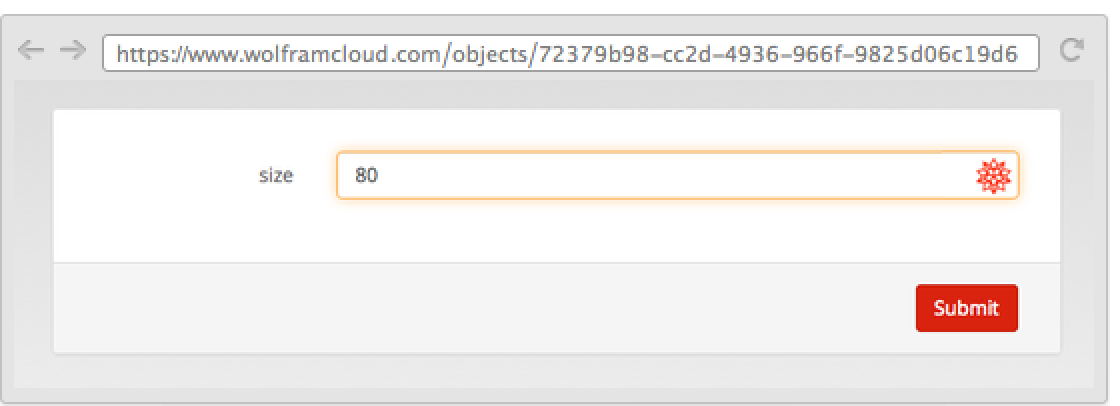
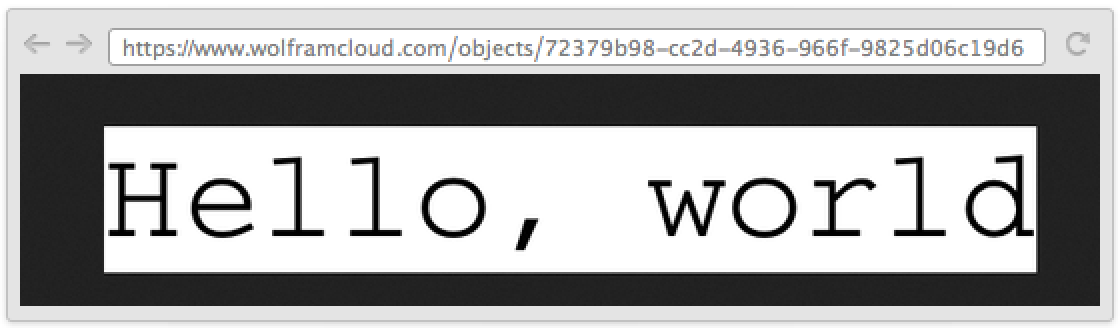
An instant form requires three basic things: a specification of parameters and their types, a specification of the code the form should run, and a specification of how the result from the form should be returned.
The Wolfram Language supports many types of parameters, as listed here.
This creates an instant web form that has a parameter called "name" representing a country and that returns a PNG:
CloudDeploy[FormFunction[{"name" -> "Country"}, GeoGraphics[#name]&, "PNG"]]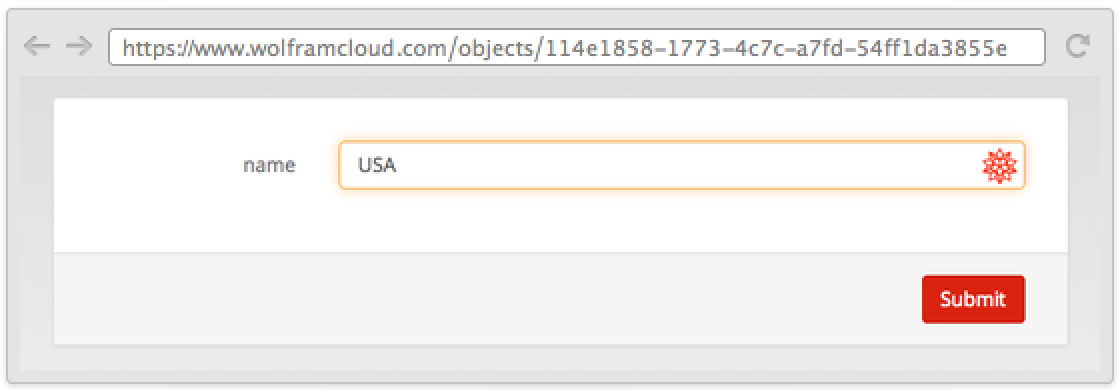
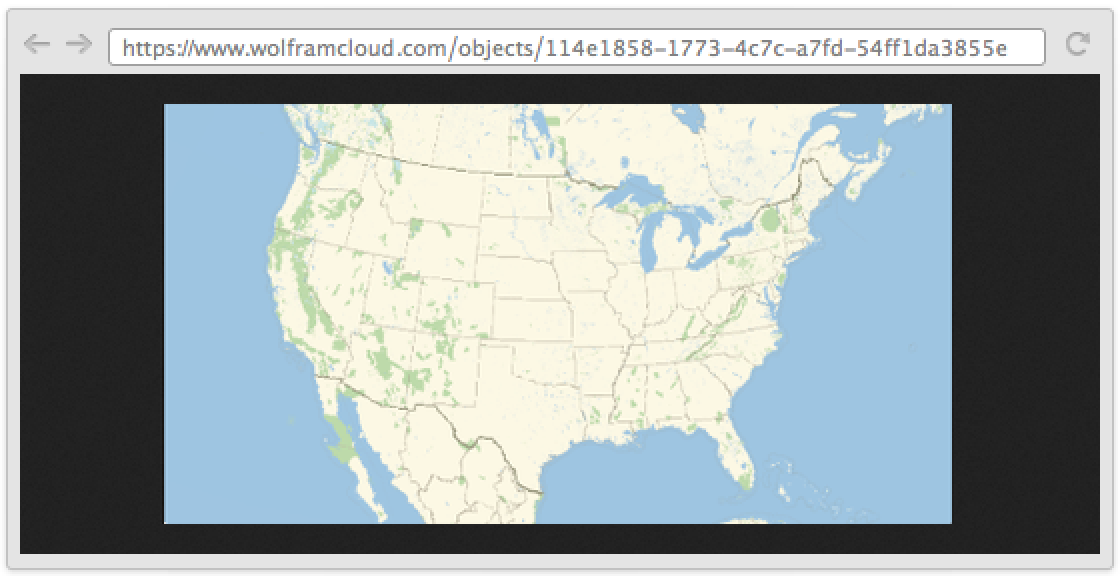
You specify the code for an form to run as a pure function, with parameter names given as #name and an & at the end to indicate that it is a pure function.
This deploys an instant form that uses parameters x and y as numbers and whose code adds these numbers together:
CloudDeploy[FormFunction[{"x" -> "Number", "y" -> "Number"}, #x + #y&]]Different parameter specifications yield different types of input fields. This is the result for a "Color" parameter:
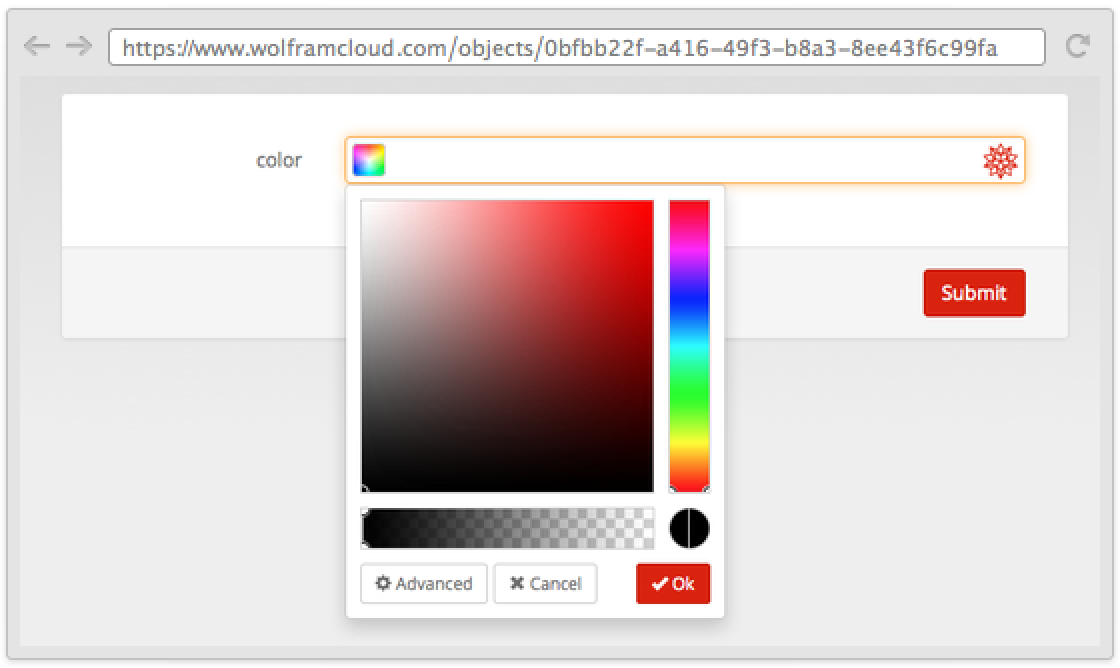
Many parameter specifications yield "smart fields" indicated by that allow natural language input:
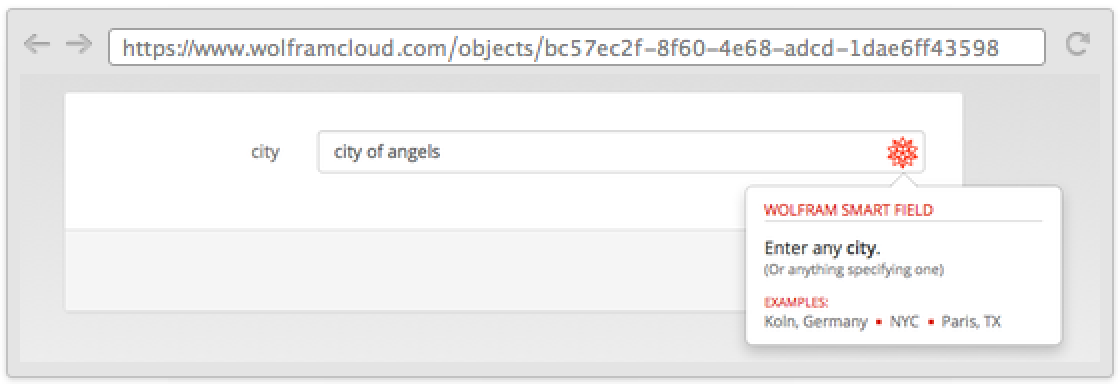
Use a list to include a label for a field:
CloudDeploy[FormFunction[{{"x", "Enter an integer:"} -> "Number"}, #x ^ #x&]]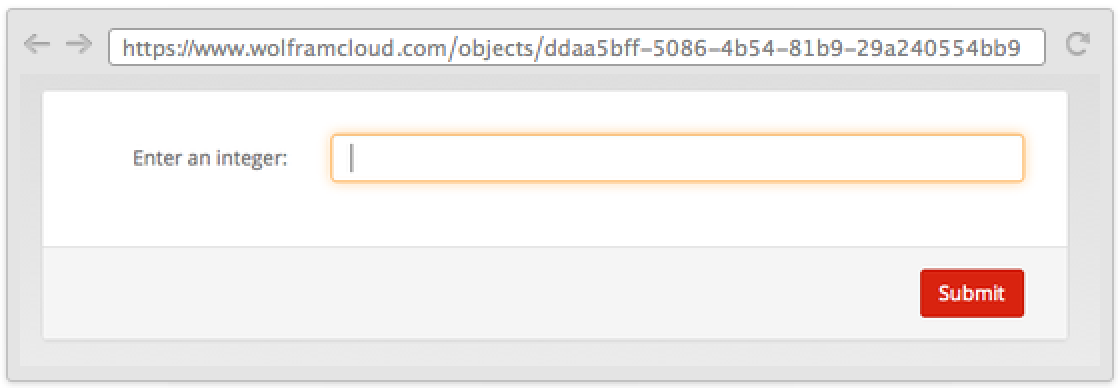
Use another rule to include a default:
CloudDeploy[FormFunction[{{"x", "Enter an integer:"} -> "Number" -> 100}, #x ^ #x &]]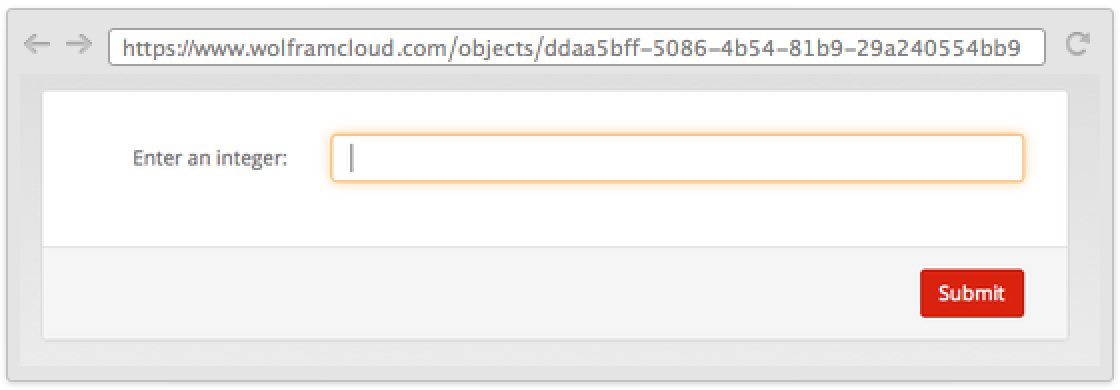
Restricted restricts the range of a parameter:
CloudDeploy[FormFunction[{{"x", "Enter an integer:"} -> Restricted["Number", {50, 200}] -> 100}, #x ^ #x &]]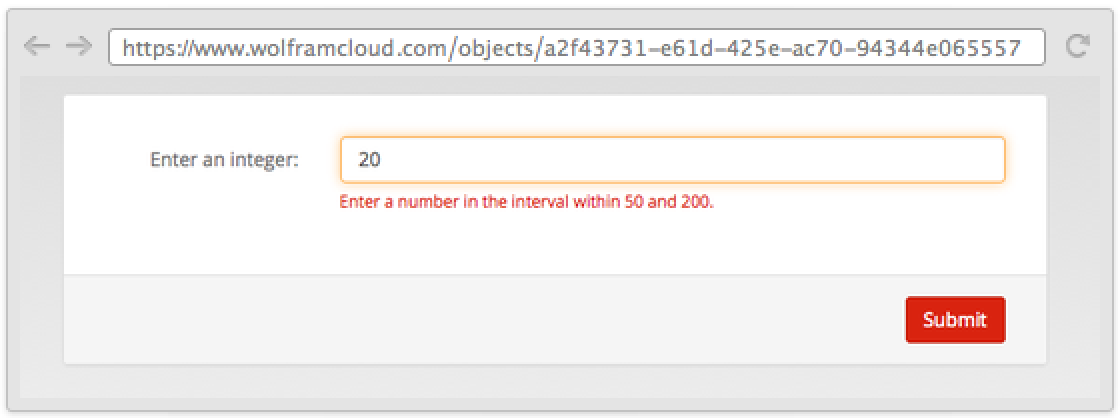
FormFunction automatically sets up appropriate controls:
CloudDeploy[FormFunction[{"gender" -> {"male", "female", "other"}, "alive" -> {True, False}}, {#gender, #alive}&]]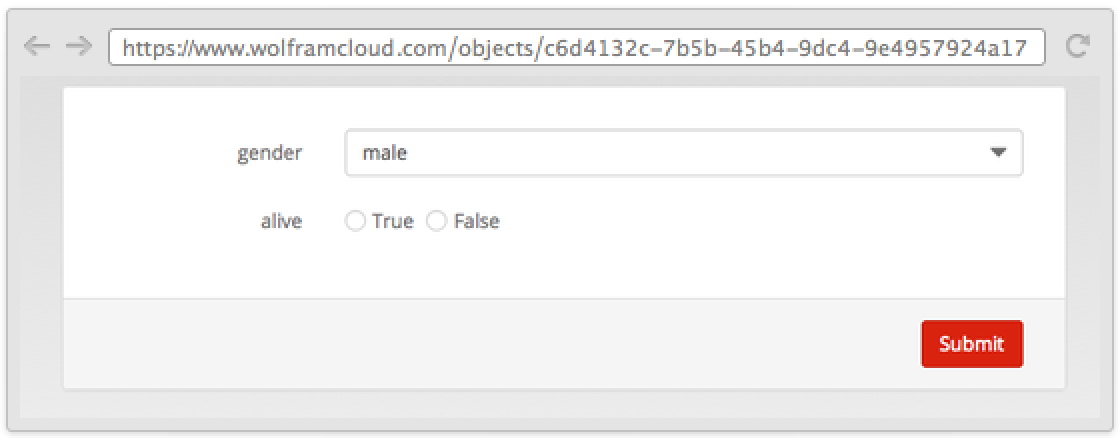
Use the PageTheme option to change the overall look of a form:
CloudDeploy[FormFunction[{"name" -> "Country"}, GeoGraphics[#name]&, "PNG", PageTheme -> "Black"]]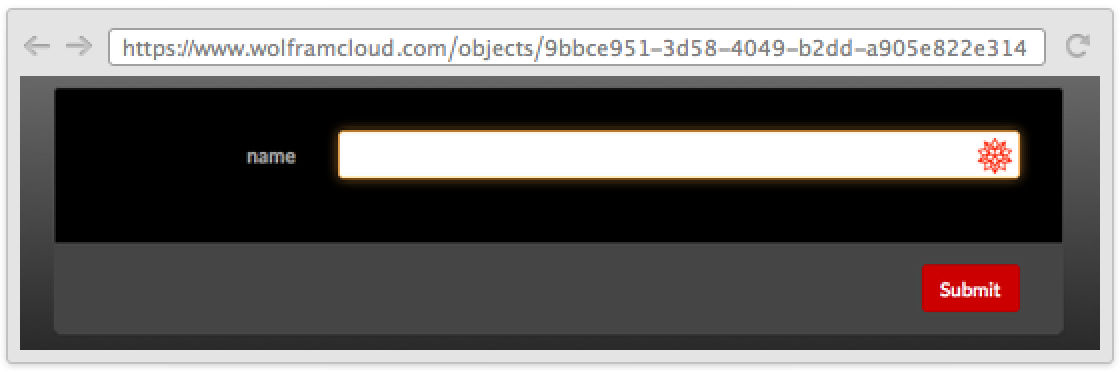
The Wolfram Language provides detailed control for the appearance of forms and fields. Use FormObject to specify the basic appearance of a form, then use the FormLayoutFunction option to specify how to render it on the web.