

AuthenticationDialog
initiates a standard dialog for entering username/password authentication information.
AuthenticationDialog["type"]
initiates an authentication dialog of the specified standard type.
AuthenticationDialog[{"key1","key2", …}]
initiates an authentication dialog that requests values for the specified keys.
AuthenticationDialog[arg,func]
applies the function func to the dialog's return value.
Details and Options
- Possible values for type include:
-
"UsernamePassword" a dialog with fields for username and password "Password" a dialog with a password field "PermissionsKey" a dialog for entering a PermissionsKey "SecuredAuthenticationKey" a dialog for entering a SecuredAuthenticationKey - AuthenticationDialog[] displays a dialog of type "UsernamePassword".
- AuthenticationDialog[arg] is equivalent to AuthenticationDialog[arg,Identity].
- Password fields automatically use FieldMasked to mask their contents in the dialog display.
- If the user cancels the dialog, AuthenticationDialog returns $Canceled, even if a function func is specified.
- AuthenticationDialog["PermissionsKey"] returns a PermissionsKey expression.
- AuthenticationDialog["SecuredAuthenticationKey"] returns a SecuredAuthenticationKey expression.
- All other dialog types return an Association.
- The Wolfram Language kernel in which AuthenticationDialog is evaluated will block until the dialog is finished.
- When no front end is present, AuthenticationDialog writes to standard output and reads from standard input.
- The forms AuthenticationDialog["type"->{"key1"->"init1",…}] and AuthenticationDialog[{"key1"->"init1",…}] can be used to specify initial values for any of the fields.
- The option setting SystemCredentialKey"name" allows data to be remembered securely in the current keyring given by $SystemCredentialStore.
- The content of a field specified as "key1"->"init1"->"Masked" will be masked.
- AuthenticationDialog[FormObject[…]] is also supported on some platforms, to display an arbitrary form in the dialog.
- AuthenticationDialog accepts notebook options and AppearanceRules.
- AppearanceRules can be used to specify the overall appearance of the dialog, including a title and descriptive text.
- AuthenticationDialog by default puts up a dialog in the middle of the main display screen. Explicit settings for WindowMargins override this.
Examples
open all close allBasic Examples (4)
Request a username and password:
AuthenticationDialog[]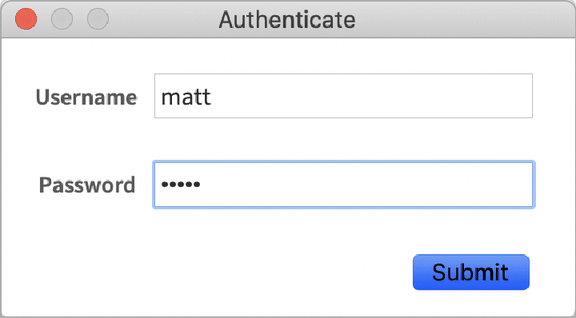
AuthenticationDialog["Password"]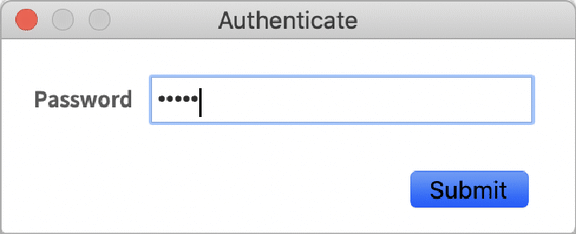
Request just a password and automatically process the result:
AuthenticationDialog["Password", Hash[#Password]&]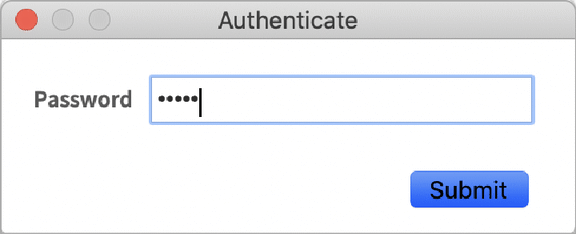
Request secured authentication credentials:
AuthenticationDialog["SecuredAuthenticationKey", AppearanceRules -> <|"Description" -> "Please enter your OAuth information for that service."|>]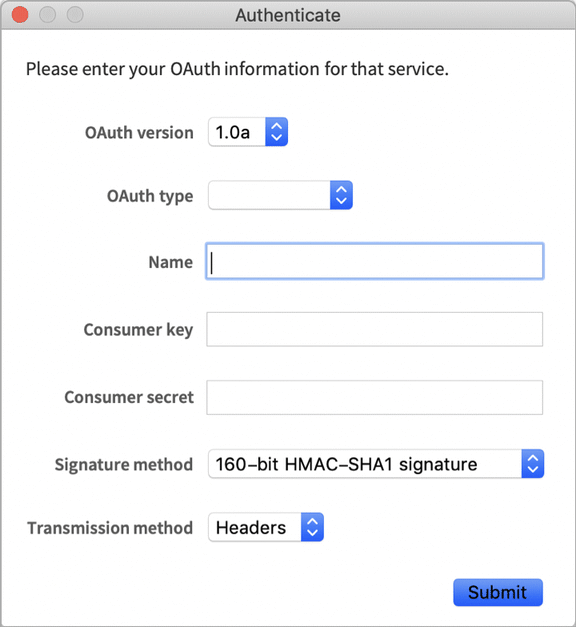
Scope (7)
Provide initial values for some of the dialog fields:
AuthenticationDialog["UsernamePassword" -> {"Username" -> "matt"}]Specify a function to process the resulting Association:
AuthenticationDialog[{"Username" -> "matt", "Password", "Password hint" -> "first pet's name"}, Delete[#, "Password hint"]&]Use custom key names, specifying optional initial values and masking:
AuthenticationDialog[{"Public key", "Private key" -> "12345" -> "Masked"}]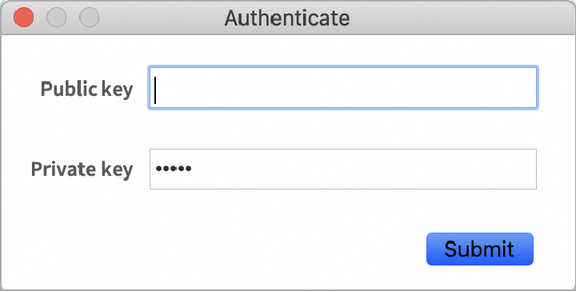
Use SystemCredentialKey"name" to securely store the dialog fields between sessions. The data is stored under the provided name:
AuthenticationDialog[{"Public key", "Private key" -> "12345" -> "Masked"}, SystemCredentialKey -> "Example1"]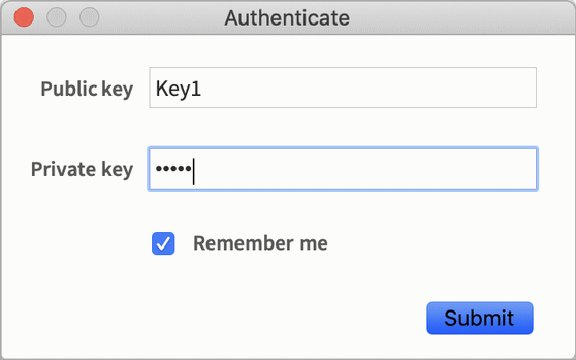
The data is remembered in secure storage under the given name:
SystemCredential["Example1"]Use FormObject for other control types, optional fields, and so on:
AuthenticationDialog[FormObject[{"Username" -> "String", "Password" -> <|"Masked" -> True|>, "Password hint" -> <|"Required" -> False, "Hint" -> "(optional)"|>}]]Use AuthenticationDialog in a standalone Wolfram Language kernel:
$ ./WolframKernel
Wolfram 15.0.0 Kernel for Mac OS X x86 (64-bit)
Copyright 1988-2026 Wolfram Research, Inc.

In[1]:= AuthenticationDialog[]
Username: matt
Password: *****

Out[1]= <|Username -> matt, Password -> 12345|>
Use AuthenticationDialog in wolframscript:
$ wolframscript -code "AuthenticationDialog[]"
Username: matt
Password: *****
<|Username -> matt, Password -> 12345|>

$
Generalizations & Extensions (1)
The "UsernamePassword" AuthenticationDialog has an additional feature if used with the SystemCredentialKey option. The fields are stored for each username previously provided:
AuthenticationDialog["UsernamePassword", SystemCredentialKey -> "Mydomain"]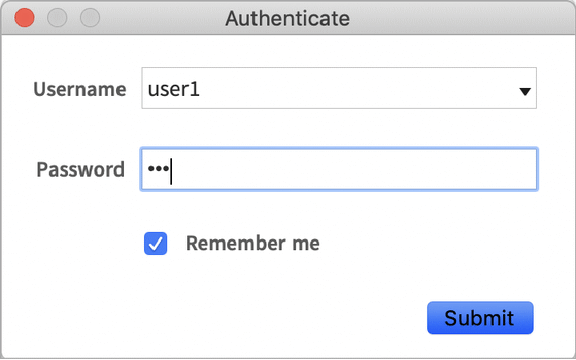
AuthenticationDialog["UsernamePassword", SystemCredentialKey -> "Mydomain"]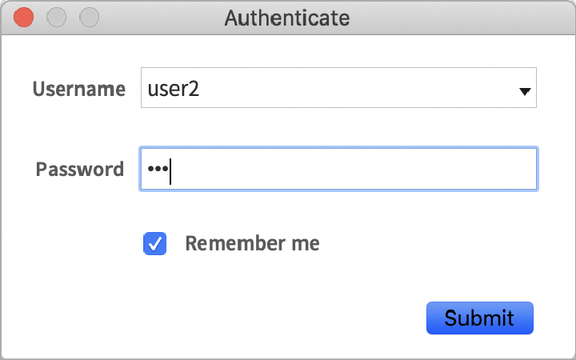
A new instance of the dialog is automatically filled with the last-used credentials. The password field is automatically filled after selecting an entry from the drop-down menu:
AuthenticationDialog["UsernamePassword", SystemCredentialKey -> "Mydomain"][image]The entries for all usernames are stored in secure storage with names derived from the base name:
SystemCredentialKeys["Mydomain/*"]{"Mydomain/user1", "Mydomain/user2"}Options (7)
AppearanceRules (3)
Include descriptive text in the dialog:
AuthenticationDialog[ "UsernamePassword", AppearanceRules -> {"Description" -> "That service requires you to log in."}]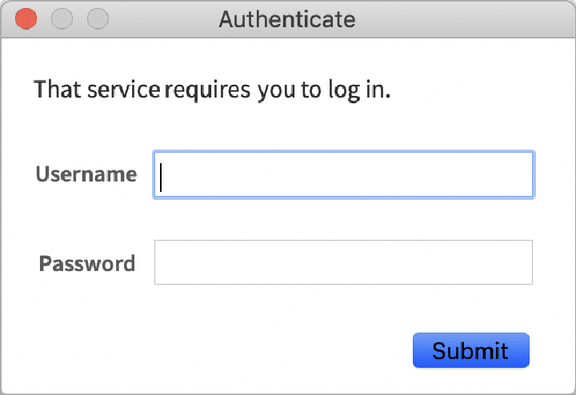
Specify a title and a description:
AuthenticationDialog[{"Username", "Password", "Comments"}, AppearanceRules -> {"Title" -> "Please login", "Description" -> "That service requires you to log in."}]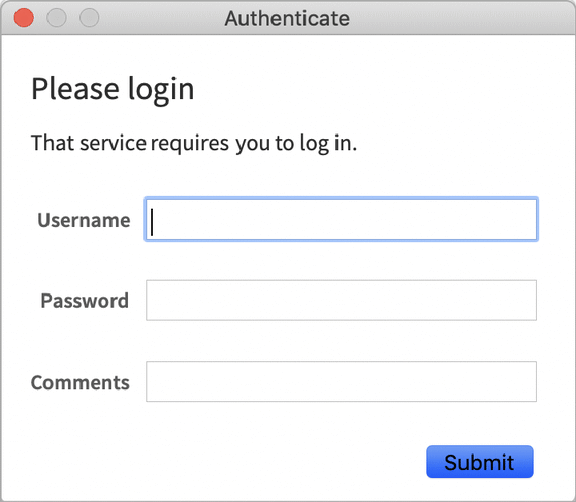
Change the text on the submit button:
AuthenticationDialog["PermissionsKey", AppearanceRules -> {"SubmitLabel" -> "Continue"}]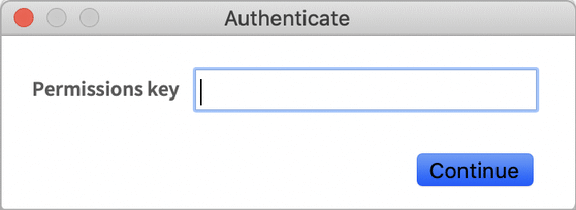
SystemCredentialKey (2)
Use SystemCredentialKey to securely store the dialog fields between sessions:
AuthenticationDialog["Password", SystemCredentialKey -> "UniqueDomainName"][image]Recall the stored field values by using the same domain as before:
AuthenticationDialog["Password", SystemCredentialKey -> "UniqueDomainName"]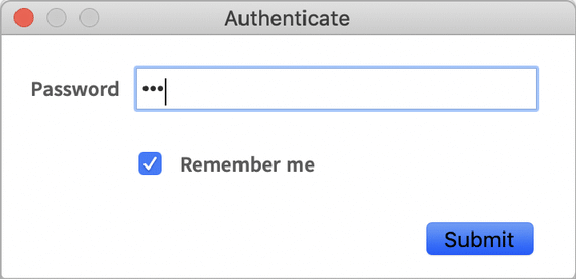
WindowMargins (1)
WindowTitle (1)
Use WindowTitle and other notebook options to adjust aspects of the dialog's notebook window:
AuthenticationDialog["UsernamePassword", WindowTitle -> "Authentication Required",
	WindowSize -> {350, FitAll},
	WindowFrameElements -> {"CloseBox", "ResizeArea"},
	WindowElements -> {"MagnificationPopUp", "HorizontalScrollBar", "VerticalScrollBar"},
	AppearanceRules -> <|"Description" -> TextGrid[{{"You are attempting to read from the url:"}, {Item[Hyperlink["https://..."], Alignment -> Center]}, {"and the server is requesting authentication. These values will be kept for this session only."}}, BaseStyle -> "FormDescription"],
	"SubmitLabel" -> "Log in"|>]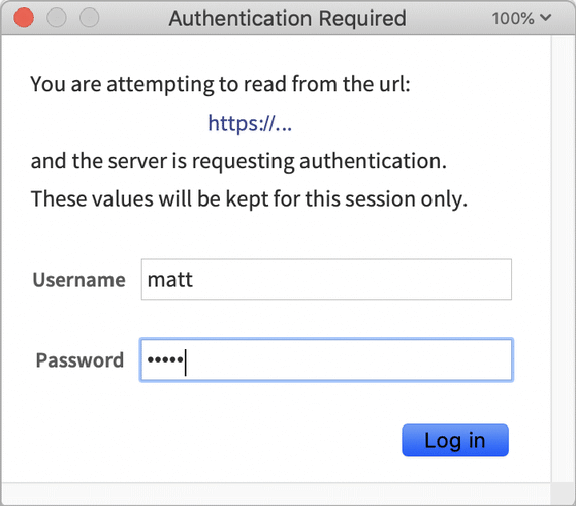
Properties & Relations (2)
Use AuthenticationDialog as a setting for Authentication, to prompt for credentials when needed:
URLRead["https://www.wolframcloud.com/obj/d1362db4-d2b4-492e-bc60-090170c44d22", "Content", Authentication -> AuthenticationDialog["PermissionsKey"]]Use AuthenticationDialog to request a password for other functions, like Encrypt and Decrypt:
Encrypt[AuthenticationDialog["Password", #Password&], "my data"]Decrypt[AuthenticationDialog["Password", #Password&], %]Possible Issues (5)
Preemptive controls cannot block the kernel's evaluation queue:
Button["Authenticate…", AuthenticationDialog[]]
Always call AuthenticationDialog from a queued evaluation:
Button["Authenticate…", AuthenticationDialog[], Method -> "Queued"]AuthenticationDialog blocks the kernel's evaluation queue, preventing asynchronous dynamics from rendering:
myDescription[] := Style["That service requires you to log in.", "FormDescription"];
AuthenticationDialog["Password", AppearanceRules -> {"Description" -> Dynamic[myDescription[], SynchronousUpdating -> False]}]
Only synchronous dynamics will render while the kernel's evaluation queue is blocked:
AuthenticationDialog["Password", AppearanceRules -> {"Description" -> Dynamic[myDescription[]]}]AuthenticationDialog will use any stored credentials that match the dialog's keys for the given domain:
AuthenticationDialog["Password", SystemCredentialKey -> "NonUniqueDomain"]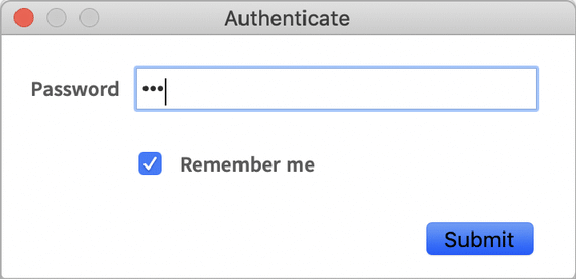
If another unrelated authentication dialog uses the same SystemCredentialKey, its old values will be overwritten:
AuthenticationDialog[{"NameField", "Password"}, SystemCredentialKey -> "NonUniqueDomain"]SystemCredentialKey is ignored for any AuthenticationDialog that uses a FormObject:
AuthenticationDialog[FormObject[{"Username" -> "String", "Password" -> <|"Masked" -> True|>}], SystemCredentialKey -> "IAmIgnored"]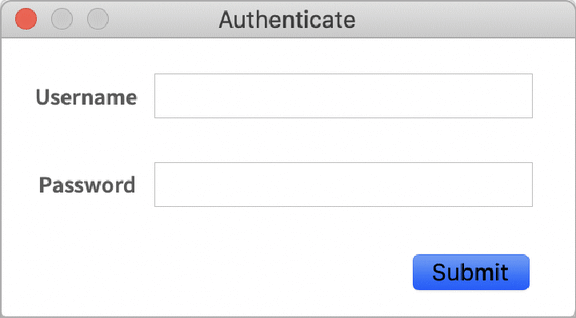
SystemCredentialKey is ignored for any AuthenticationDialog in a standalone Wolfram Language kernel:
> wolfram
Wolfram 15.0.0 Kernel for Microsoft Windows (64-bit)
Copyright 1988-2026 Wolfram Research, Inc.

In[1]:= AuthenticationDialog["Password", SystemCredentialKey->"Domain"]                                        Password: ***                                                                                                                                                                                                                 Out[1]= <|Password -> 123|>
Text
Wolfram Research (2018), AuthenticationDialog, Wolfram Language function, https://reference.wolfram.com/language/ref/AuthenticationDialog.html (updated 2020).
CMS
Wolfram Language. 2018. "AuthenticationDialog." Wolfram Language & System Documentation Center. Wolfram Research. Last Modified 2020. https://reference.wolfram.com/language/ref/AuthenticationDialog.html.
APA
Wolfram Language. (2018). AuthenticationDialog. Wolfram Language & System Documentation Center. Retrieved from https://reference.wolfram.com/language/ref/AuthenticationDialog.html