

ImageApply
ImageApply[f,image]
applies the function f to the list of channel values for each pixel in image.
ImageApply[f,{image1,image2,…}]
applies f to the sequence of corresponding pixel values taken from each imagei.
Details and Options
- ImageApply[f,image] implements an image point operator, where the same function is applied to every pixel of an image. Most color operations such as color conversion and quantization are point operators.
- ImageApply works with 2D and 3D images with any number of channels.
- In ImageApply[f,image], the function f can return a number or a list of any length.
- The channel values supplied to f are normally in the range 0 to 1, regardless of the underlying type of image. The function f is assumed to return channel values that are normally in the range 0 to 1.
- ImageApply[f,{image1,…,imagen}] implements a pixelwise image operator. The function f is supplied with a sequence of n arguments. »
- ImageApply[f,{image1,image2,…}] works with any number of commensurate images and gives an image with the largest type of imagei, clipping or truncating values if necessary.
- The following options can be given:
-
Interleaving True whether to apply f to the list of channel values or separately to each channel value Masking All region of interest to be processed - Evaluations of f may be cached to focus on speed of getting a result. »
- ImageApply[f,image] returns an image of the same type as image.
Examples
open all close allBasic Examples (2)
Scope (8)
Color negate a grayscale image:
ImageApply[1 - #&, [image]]ImageApply[1 - #&, [image]]Reverse the elements of each channel vector:
ImageApply[(| | | |
| - | - | - |
| 0 | 0 | 1 |
| 0 | 1 | 0 |
| 1 | 0 | 0 |).#&, [image]]Replace each RGB pixel by the maximum of all channel values:
ImageApply[Max, [image]]Compute the maximum of corresponding pixel values in a list of grayscale images:
ImageApply[Max, {[image], [image], [image], [image], [image], [image]}]Apply a pure function to a sequence of pixel values in a list of RGB-color images:
ImageApply[#1 + 1.25 * #2 + #3&, {[image], [image], [image]}]Apply a function to pixels of a 3D RGB image:
ImageApply[RandomInteger[]#&, [image]]ImageApply[Max, {[image], [image]}]Options (4)
Interleaving (2)
Use Interleaving->False when the function has to be applied to each color channel value separately:
f[x_Real] := Piecewise[{{2x, x <= .5}, {2 - 2x, x > .5}}]
ImageApply[f, [image], Interleaving -> False]
With Interleaving->False, all images should have the same number of channels:
ImageApply[Max, {[image], [image]}, Interleaving -> False]
Convert the single-channel image to an RGB image:
ImageApply[Max, {ColorConvert[[image], "RGB"], [image]}, Interleaving -> False]Masking (2)
Negate pixels in the specified region of interest:
ImageApply[1 - #&, [image], Masking -> Graphics[Disk[]]]Region-of-interest processing is not supported when applying a function to a list of images:
ImageApply[{##}&, {[image], [image], [image]}, Masking -> [image]]
Include the mask as one of the images in the list:
ImageApply[If[Mean[#4] > 0, Most[{##}], ConstantArray[#1, 3]]&, Flatten@{[image], [image], [image], [image]}]Applications (11)
img = [image];
ImageApply[# ^ 1.6&, img]ImageApply[1 - #&, img]Covert to a single-channel image:
ImageApply[Mean, img]Manipulate[ImageApply[#[[channel]]&, [image]], {{channel, 1}, {1 -> "R", 2 -> "G", 3 -> "B"}}]Use built-in color gradients to add color to an image:
ImageApply[List@@ColorData["AlpineColors", #]&, [image]]Add an alpha channel to a grayscale image:
ImageApply[{#, Boole[# > .2]}&, [image]]ImageChannels[%]Highlight a region in an image:
ImageApply[{1, 0, 0}&, [image], Masking -> [image]]Compute the elementwise inverse of an image:
ImageApply[1 / #&, [image]]//ImageAdjustPixel-wise division of two images:
ImageApply[#1 / #2&, {[image], [image]}]//ImageAdjust//ColorNegateCompute max intensity projection (MIP) on 3D CT data:
Import["ExampleData/CThead.tiff", "Image3D"]ImageApply[Max, Import["ExampleData/CThead.tiff"]]Create a saturated composite image:
ImageApply[Rescale[{##}]&, {[image], [image], [image]}]Colorize the gradient's magnitude and orientation of an image:
img = [image];
m = ImageAdjust@GradientFilter[img, 3];
o = ImageAdjust[GradientOrientationFilter[img, 3], {0, 0, 1}, {-Pi / 2, Pi / 2}];
Image[ImageApply[{#2, 1, #1}&, {m, o}], ColorSpace -> "HSB"]
Compute the so-called Robert's gradient image:
i = [image];
ImageApply[Sqrt[#1^2 + #2^2]&, {ImageConvolve[i, (| | |
| - | -- |
| 1 | 0 |
| 0 | -1 |)], ImageConvolve[i, (| | |
| -- | - |
| 0 | 1 |
| -1 | 0 |)]}]Properties & Relations (2)
ImageApply returns an image of the same data type as input:
i = Image[{{100}}, "Byte"]ImageApply[1 + #&, i]//ImageTypeClipping and truncation will happen when necessary:
ImageApply[1 + #&, i]//ImageDataConvert to a real type to avoid clipping and truncating:
ImageApply[1 + #&, Image[i, "Real"]]//ImageDataIn ImageApply[f,image], evaluations of f may be cached to focus on speed of getting a result:
gray = [image];Single channel "Byte" images use cached evaluations:
ImageApply[x Sqrt[x], gray]This may affect the result if the specified function can give different results when applied to same inputs:
ImageApply[x RandomReal[], gray]Multichannel "Byte" images use cached evaluations with Interleaving->False:
image = Image[RandomImage[1, {1024, 1024}, ColorSpace -> "RGB"], "Byte"];res1 = ImageApply[x Sqrt[x], image, Interleaving -> False];//RepeatedTimingCompare with the timing for an interleaved image when no caching is used:
res2 = ImageApply[x Sqrt[x], image, Interleaving -> True];//RepeatedTimingres1 == res2Multichannel "Byte" images use cached evaluations with Listable functions:
ImageApply[Function[x, Sqrt[x], Listable], image, Interleaving -> True];//RepeatedTimingPossible Issues (3)
Functions that accept lists as their input cannot be applied on single-channel images:
ImageApply[Reverse, [image]]
Functions should return a number or a list of numbers for every pixel in the image:
ImageApply[1 / #&, Image[{{2, 0, 2}}]]
The same inverse function can be applied to an image with nonzero pixels:
ImageApply[1 / #&, Image[{{2, 1, 2}}]]ImageApply preserves the image data type, clipping or truncating values if necessary:
image = [image];ImageApply[x x + 0.4, Image[image, "Bit"]]% == imageApply the function to a "Real32" image instead:
ImageApply[x x + 0.4, Image[image, "Real32"]]Neat Examples (4)
ImageApply[RotateLeft, [image]]Convert an image to grayscale while preserving the red color:
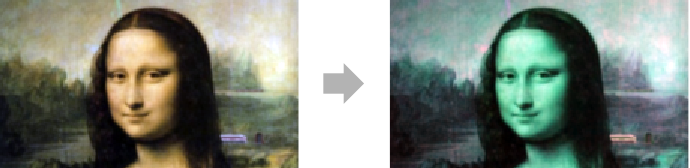
ImageApply[If[#[[1]] > #[[2]] + #[[3]], #, ConstantArray[Mean[#], 3]]&, [image]]Apply any coloring function to an image:
ImageApply[TriangleWave, [image]]ImageApply[ {Sin[Pi # * 4], Sin[Pi #], Sin[Pi# * 3]}&, [image]]Text
Wolfram Research (2008), ImageApply, Wolfram Language function, https://reference.wolfram.com/language/ref/ImageApply.html (updated 2012).
CMS
Wolfram Language. 2008. "ImageApply." Wolfram Language & System Documentation Center. Wolfram Research. Last Modified 2012. https://reference.wolfram.com/language/ref/ImageApply.html.
APA
Wolfram Language. (2008). ImageApply. Wolfram Language & System Documentation Center. Retrieved from https://reference.wolfram.com/language/ref/ImageApply.html