Capture an Entire Webpage
Use WebExecute to screenshot an entire webpage.
Begin the session
Use StartWebSession to begin the session:
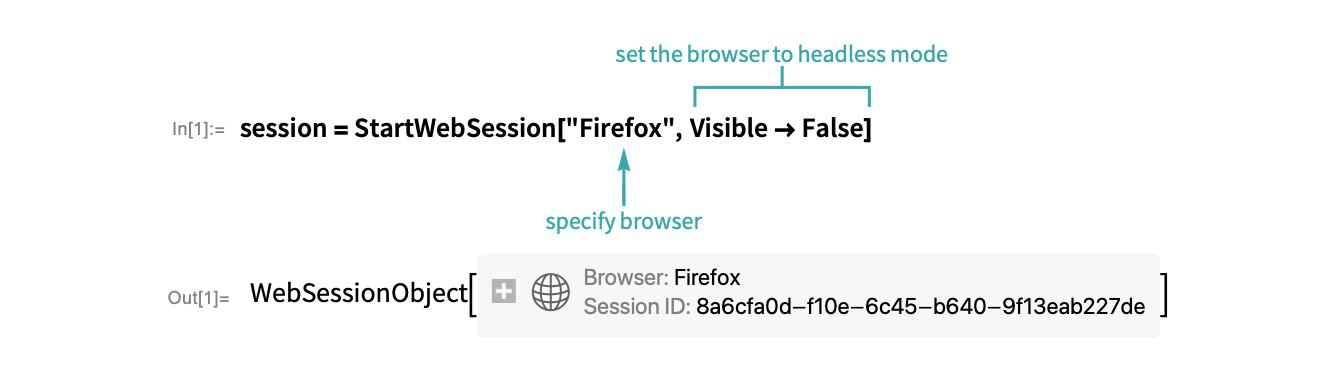
- This process can be viewed in your computer’s task manager.
- If no browser is supplied to StartWebSession, it will default to Google Chrome.
Set the window width and height
Open the page you would like to capture:

Use the "JavascriptExecute" command to automate the scrolling of the webpage to find the true width:
width = WebExecute[session, "JavascriptExecute" -> "return document.documentElement.scrollWidth"]Use the "JavascriptExecute" command to automate the scrolling of the webpage to find the true height:
height = WebExecute[session, "JavascriptExecute" -> "return document.documentElement.scrollHeight"]Use the "SetWindowSize" command to set the current window size to be the actual width and height of the webpage:
WebExecute[session, "SetWindowSize" -> {width, height}]- The preceding JavaScript works with both the HTML body margins and the margins of content within the body tag, pushing it downward.
Capture the page
Take a screenshot of the entire webpage:
webpageImage = WebExecute[session, "CapturePage"]Close the session
Use DeleteObject to terminate the web session process:
DeleteObject[session]Export the image
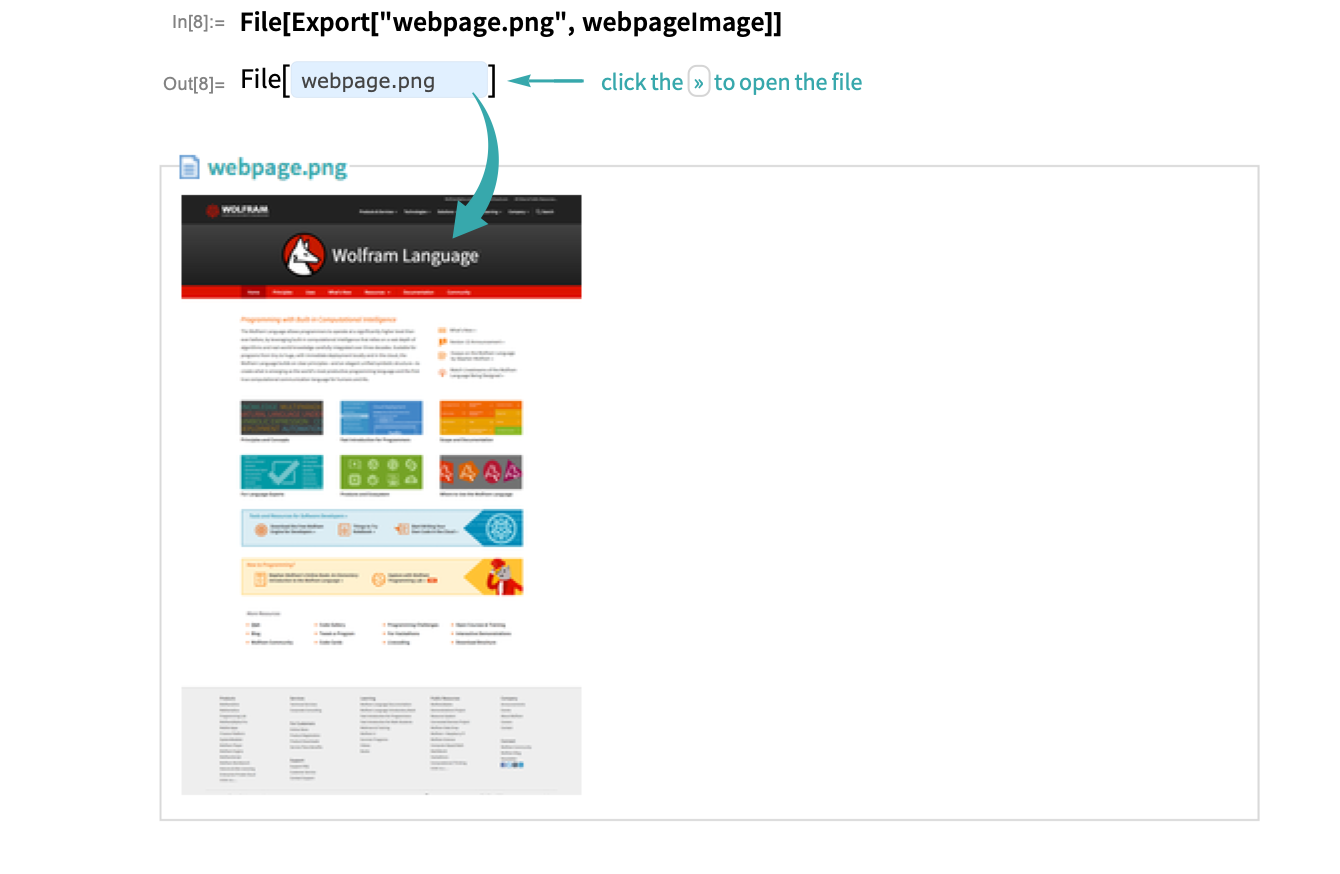
Export the image to a PNG file: