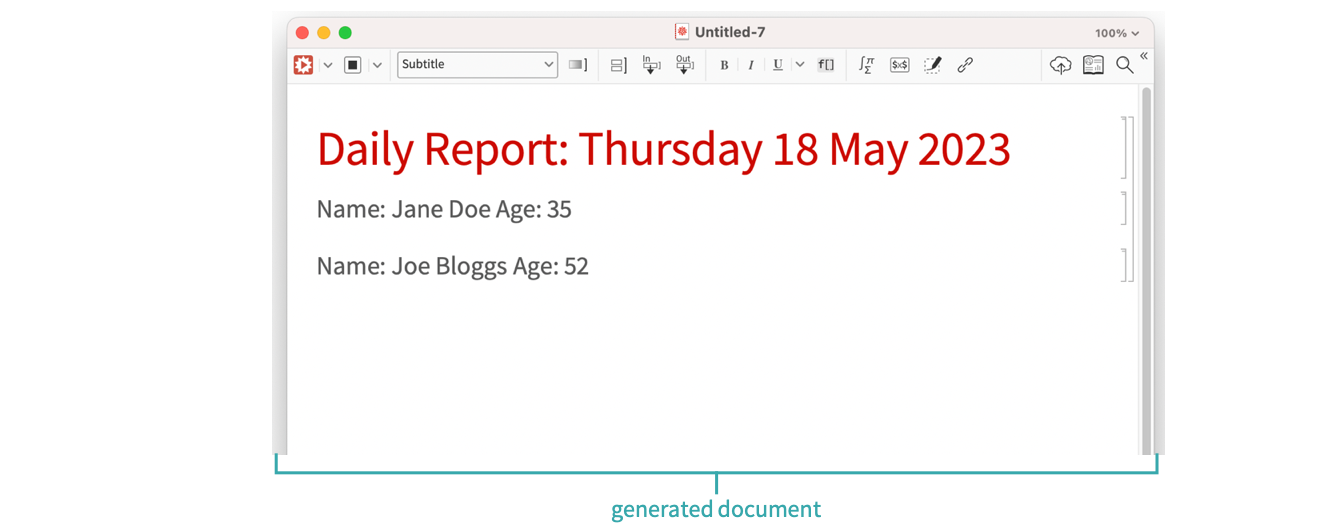
Create a notebook template and generate a report with specified data.
Create the template
Using the Menu...
Click the File tab and select New. Then, choose Template Notebook:
[image]Programmatically...
You can also create a notebook using the function CreateNotebook, which will generate a NotebookObject. The argument is a string that specifies the type of notebook to be created. In this case, a notebook template:


Edit the template, adding active content
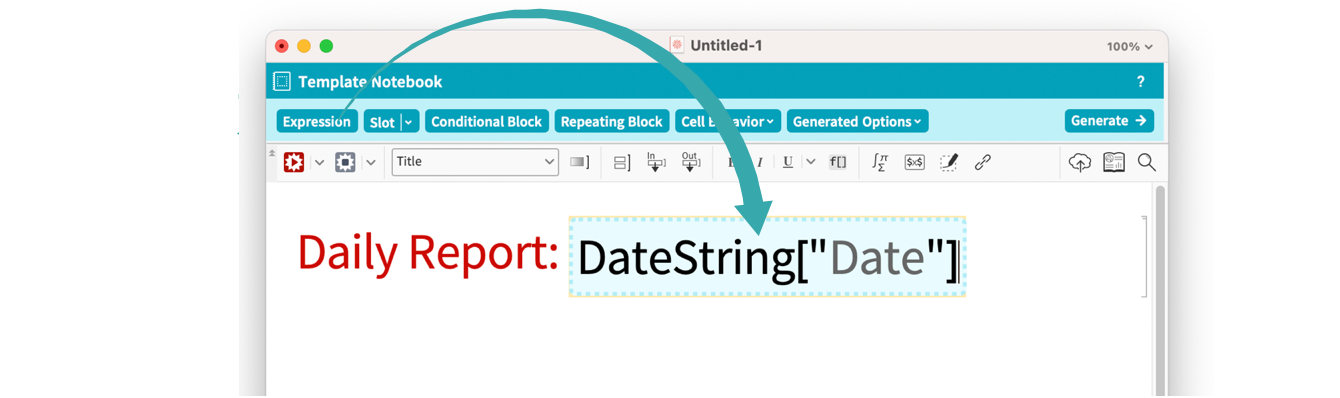
Add content to the template, for example, a template expression. These are evaluated when the notebook is generated.
Place the cursor at a given position in a cell and click the “Expression” button. You can then enter an expression.
Add slot that is filled from data
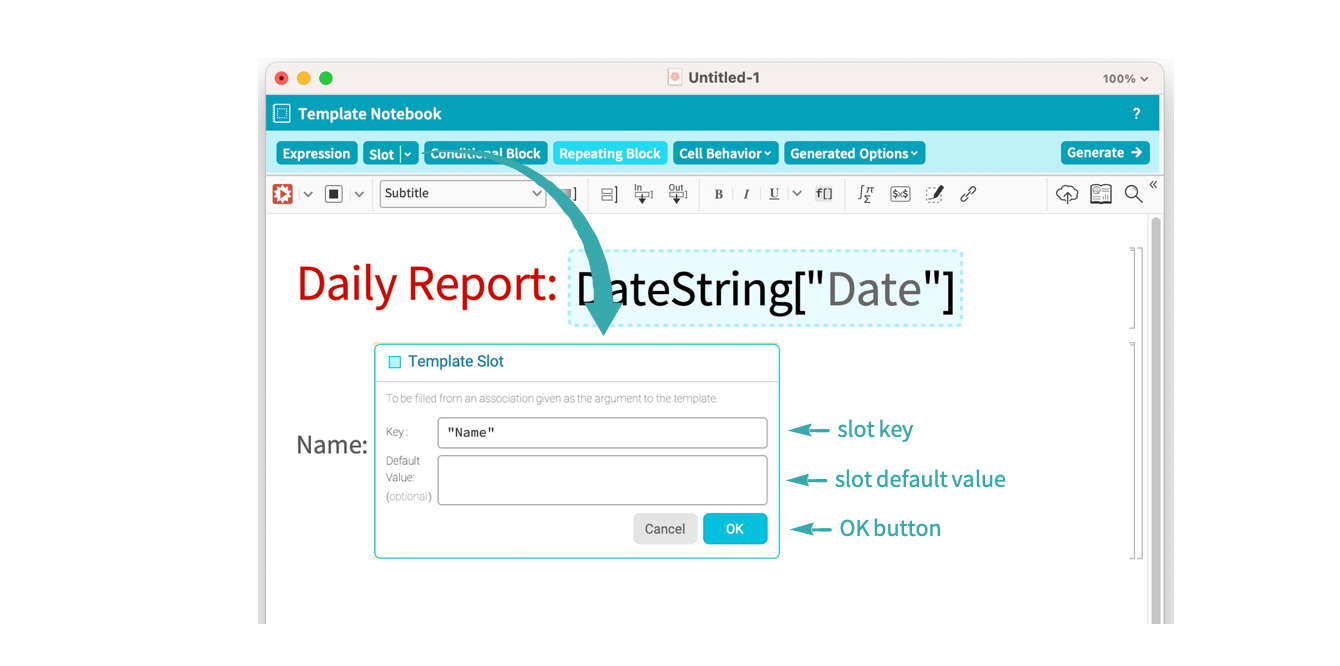
Add a template slot. These are substituted for values passed in when the template is applied.
Place the cursor at a given position and click the "Slot" button. You can then enter a key and default value. When these are entered, click OK.
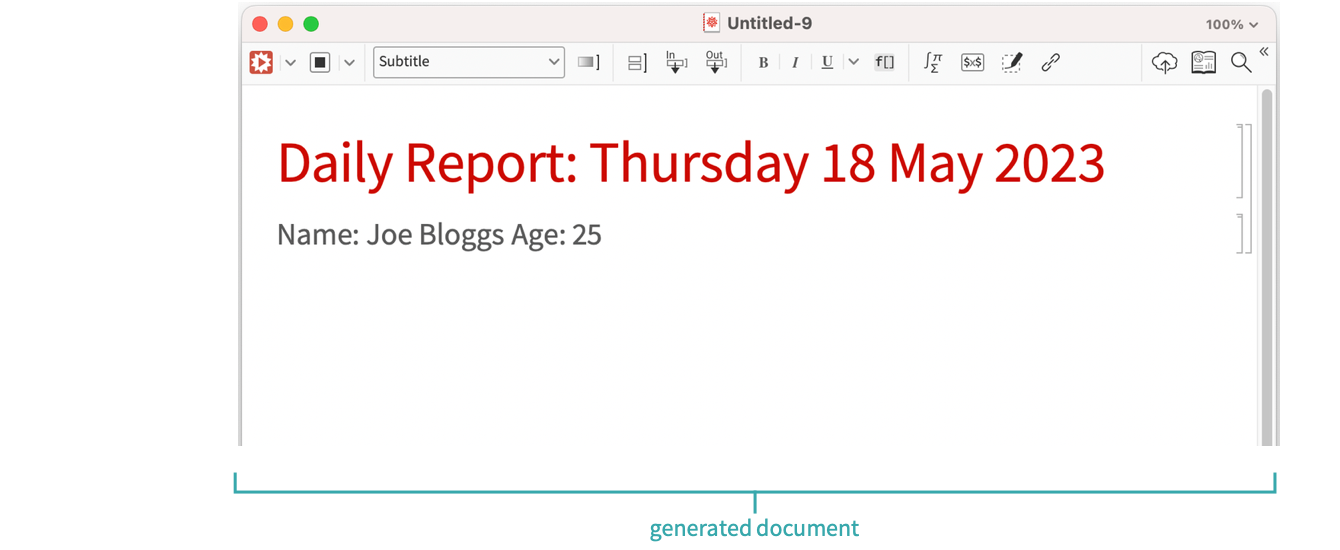
Add an additional template slot with the key “Age”.
[image]Applying the template
GenerateDocument applies data to the template. Run the following in a new notebook:


Add a RepeatingBlock to the template
An individual Cell or CellGroup can be repeated for different entries in a data list with a repeating block. Select the Name/Age cell, click the “RepeatingBlock” button, fill in the template variable “People” and click OK.
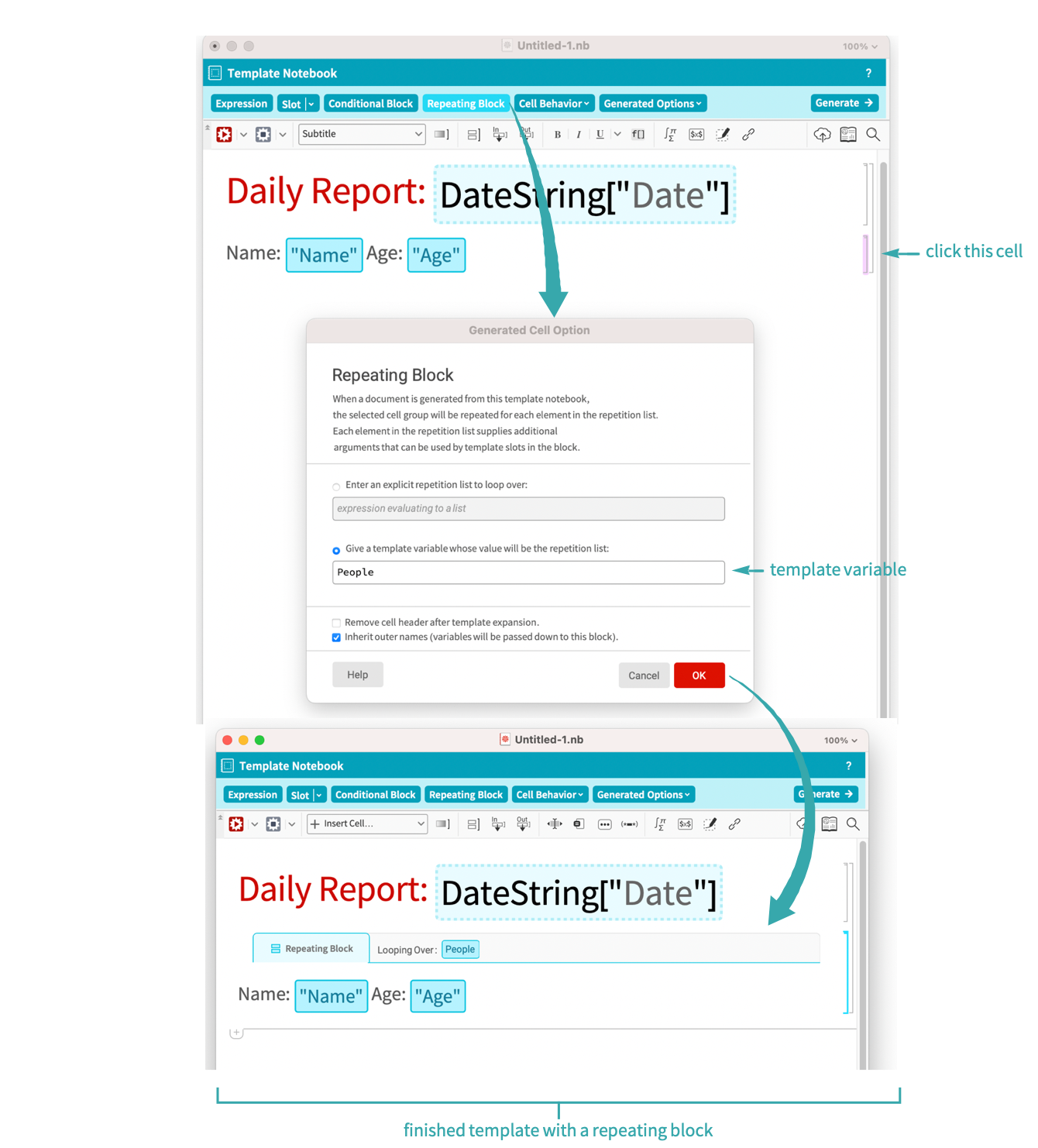
Run the report again, adding an Association with the key “People”, which has a list of Associations with the keys “Name” and “Age”.