

NotebookApply
NotebookApply[notebook,data]
writes data into a notebook at the current selection, replacing the first selection placeholder in data by the current selection, and then setting the current selection to be just after the data written.
NotebookApply[cell,data]
writes data into a notebook in place of the specified cell.
NotebookApply[notebook,data,sel]
writes data into a notebook and then sets the current selection to be as specified by sel.
Details and Options
- The first argument of NotebookApply can be a NotebookObject or a CellObject.
- NotebookApply has the same effect as NotebookWrite, except that it replaces the first selection placeholder in data by the current selection.
- NotebookApply can be used in setting up actions for buttons in palettes.
- Selection placeholders are represented by the character or \[SelectionPlaceholder].
- Possible settings for sel are as in NotebookWrite.
Examples
open all close allBasic Examples (1)
Create a notebook and select the first x:
nb = CreateDocument[{x, x}];SelectionMove[nb, Next, CellContents]
Apply a template to make the x the base of a superscript structure:
NotebookApply[nb, SuperscriptBox["", ""]]
Apply a template and select all of the data written:
SelectionMove[nb, Next, CellContents];NotebookApply[nb, SuperscriptBox["", ""], All]
Options (2)
AutoScroll (2)
Select an x in a cell that is not visible in the notebook window:
nb = NotebookPut[Notebook[Join[{Cell["Subsection heading", "Subsection"]}, Table[Cell[BoxData["x"], "Input"], {50}]]]];
SelectionMove[nb, Next, CellContents, 30, AutoScroll -> False]
Usually, writing data to a location makes the document scroll to that location:
NotebookApply[nb, SuperscriptBox["", ""]]
Again, select an x that is not visible in the notebook window:
nb = NotebookPut[Notebook[Join[{Cell["Subsection heading", "Subsection"]}, Table[Cell[BoxData["x"], "Input"], {50}]]]];
SelectionMove[nb, Next, CellContents, 30, AutoScroll -> False]
With AutoScroll set to False, the location where data is written stays off screen:
NotebookApply[nb, SuperscriptBox["", ""], AutoScroll -> False]
Moving the selection slightly, without AutoScroll->False, scrolls to where the new data is:
SelectionMove[nb, After, Character]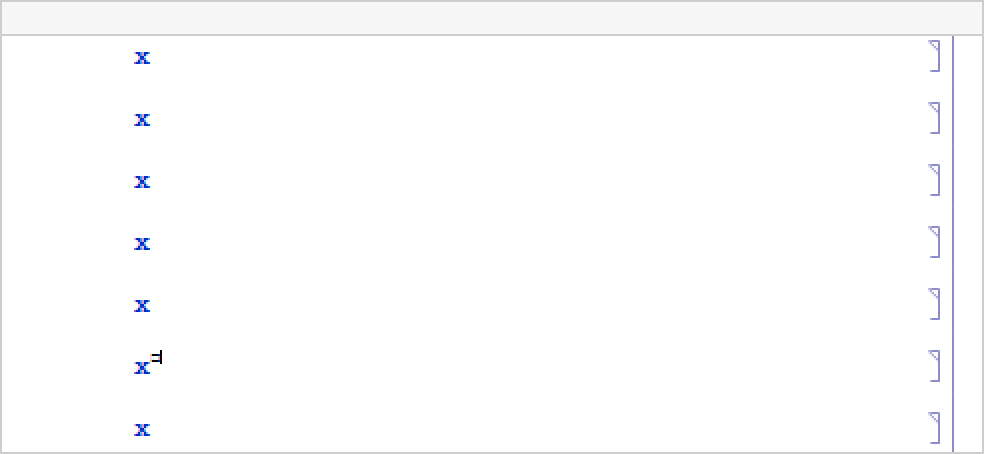
Text
Wolfram Research (1996), NotebookApply, Wolfram Language function, https://reference.wolfram.com/language/ref/NotebookApply.html (updated 2012).
CMS
Wolfram Language. 1996. "NotebookApply." Wolfram Language & System Documentation Center. Wolfram Research. Last Modified 2012. https://reference.wolfram.com/language/ref/NotebookApply.html.
APA
Wolfram Language. (1996). NotebookApply. Wolfram Language & System Documentation Center. Retrieved from https://reference.wolfram.com/language/ref/NotebookApply.html