



Video
Details and Options
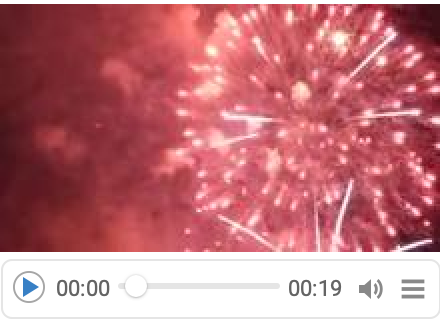
- Video is an object that can be input and output to functions, displayed as a video player.
- The video file can be in any of the supported video formats such as MP4, QuickTime, Ogg and more.
- On most platforms, popular video codecs such as H264 and HEVC are supported. See $VideoDecoders for a complete list of containers and decoders.
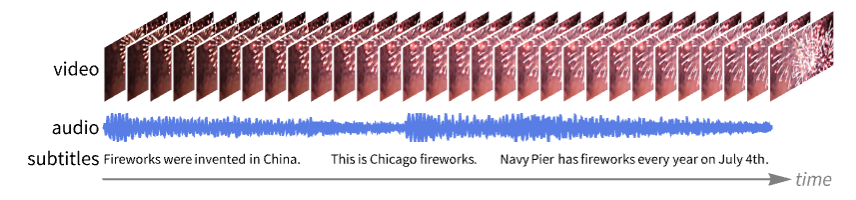
- The video may contain multiple video, audio and subtitle tracks.
- The Video object respects the camera rotations and assumes the top of the image to be aligned with the top of the camera.
- The Video object can be created from any of the following sources:
-
File["file"] or "file" file name, searched for on $Path URL["url"] or "url" HTTP, HTTPS or FTP URL CloudObject[…] a cloud object LocalObject[…] a local object ResourceObject[…] a resource object - Video[anim] can be used to generate a Video object by exporting frames from the following expressions:
-
AnimatedImage[…] an animated image Manipulate[…] a Manipulate, Animate or ListAnimate object - Video is treated as a raw object by functions like AtomQ and for purposes of pattern matching.
- The following options can be specified:
-
Appearance Automatic appearance of the generated player AudioOutputDevice $DefaultAudioOutputDevice audio output device to use for playback AudioTrackSelection Automatic audio tracks selection ImageResolution Automatic the resolution when displayed ImageSize Automatic display size of the video frames PlaybackSettings Automatic video playback settings RasterSize Automatic dimensions of video frames ShowSubtitles False whether to display subtitle tracks SoundVolume 1 sound volume SubtitleTrackSelection Automatic subtitles tracks selection VideoTrackSelection Automatic video tracks selection - Possible settings for Appearance are "Thumbnail", "Minimal" and "Basic".
- Information for Video may include the following properties:
-
"Duration" duration of the longest track "FrameRate" frame rate for each video track "RasterSize" image dimensions to use for video tracks "ResourcePath" path to the audio file "SampleRate" sampling rate for each audio track - Use the "Store in notebook" button or the ToMemory function to store a Video object in a notebook.
Examples
open all close allBasic Examples (1)
Create a Video object linking to a local file:
v = Video["ExampleData/Caminandes.mp4"]Check that the created video is valid:
VideoQ[v]VideoSummaryPlot[v]Get general information about the video:
Information[v]Scope (7)
Create a Video object from a file:
Video["ExampleData/Caminandes.mp4"]Video["http://exampledata.wolfram.com/office.ts"]Create a video from a CloudObject:
Video[CloudObject["https://www.wolframcloud.com/obj/documentation/dog"]]Create a video from a ResourceObject:
Video[ResourceObject["Sample Video: Citrus in Water"]]Create a video from a Manipulate:
Video[Manipulate[Plot[Sin[x], {x, 0, 2Pi}, PlotStyle -> Hue[h], ImageSize -> 150], {h, 0, 1}, ControlType -> None, Paneled -> False]]Create a video from a Manipulate with some audio:
m = Manipulate[Plot[Sin[x], {x, 0, 2Pi}, PlotStyle -> Hue[h], ImageSize -> Medium], {h, 0, 1}];
a = ExampleData[{"Audio", "Bird"}];Export["file.mp4", {"Frames" -> m, "Audio" -> a}, "Rules", RasterSize -> 300, "ControlAppearance" -> None];
Video[%]Information[%]Video[AnimatedImage["ExampleData/pearls.png"]]Options (12)
Appearance (3)
By default, the "Basic" appearance provides some controls for playback position, track selection and more:
Video["ExampleData/Caminandes.mp4"]Use the "Minimal" appearance that plays the video in the notebook:
Video["ExampleData/Caminandes.mp4", Appearance -> "Minimal"]Use the "Thumbnail" appearance to open the video in an external player:
Video["ExampleData/Caminandes.mp4", Appearance -> "Thumbnail"]AudioOutputDevice (1)
By default, video objects are played through the default output device:
$DefaultAudioOutputDevice
Video["ExampleData/rule30.mp4"]
List of all available audio devices:
$AudioOutputDevicesVideo["ExampleData/rule30.mp4", AudioOutputDevice -> "MacBook Pro Speakers"]AudioTrackSelection (1)
ImageResolution (1)
ImageSize (1)
RasterSize (1)
By default, the video is at its full resolution:
v = Video["ExampleData/Caminandes.mp4"];
VideoExtractFrames[v, 1]//ImageDimensions
Compare to the original frame dimensions:
Import["ExampleData/Caminandes.mp4", "RasterSize"]Specify the pixel dimensions of each frame to be returned from the created video:
v = Video["ExampleData/Caminandes.mp4", RasterSize -> 200]Video functions such as VideoExtractFrames respect the RasterSize setting:
VideoExtractFrames[v, 1]//ImageDimensionsShowSubtitles (1)
By default, Video objects with subtitles do now show subtitles:
Video["ExampleData/bullfinch.mkv"]Video["ExampleData/bullfinch.mkv", ShowSubtitles -> True]Specify the subtitle track to show:
Video["ExampleData/bullfinch.mkv", ShowSubtitles -> 2]SoundVolume (1)
SubtitleTrackSelection (1)
By default, the video will contain all the subtitle tracks present in the file:
v = Video["ExampleData/bullfinch.mkv"];
Information[v, "SubtitleTracks"]
Select only one subtitle track:
v = Video["ExampleData/bullfinch.mkv", SubtitleTrackSelection -> 2];
Information[v, "SubtitleTracks"]
VideoTrackSelection (1)
Create a video file with multiple video tracks:
i = ResourceData["Sample Image: White Dog on a Beach"];
f[time_] := {Blur[i, 20 * time], ColorQuantize[ImageResize[i, 200], Round[1 + 3 * time]]};
v = VideoGenerator[f, GeneratedAssetLocation -> "file.mp4"];
By default, the video will contain all the video tracks present in the file:
Information[Video["file.mp4"], "VideoTracks"]v = Video["file.mp4", VideoTrackSelection -> 2];
Information[v, "VideoTracks"]Applications (2)
Create a collage of video frames to show a summary of a video:
v = Video["http://exampledata.wolfram.com/agent327.mp4", RasterSize -> 200];ImageCollage[VideoFrameList[v, 9], ImagePadding -> 5, Background -> White]Analyze a video to find transitions from one scene to another:
v = Video["ExampleData/Caminandes.mp4"];ts = VideoMapTimeSeries[ImageDistance@@#Image&, v, 2, 1]Plot the result, showing times with significant scene change:
ListLinePlot[ts, PlotRange -> All]Properties & Relations (3)
A valid Video expression is considered a raw object for pattern-matching purposes:
v = Video["ExampleData/Caminandes.mp4"];
VideoQ[v]AtomQ[v]Cases[v, _String]This does not apply to invalid expressions:
v = Video["foo"];
VideoQ[v]
AtomQ[v]Cases[v, _String]The video content is not actually stored in the Video expression:
FileByteCount[FindFile["ExampleData/Caminandes.mp4"]]ByteCount[Video["ExampleData/Caminandes.mp4"]]By default, Import uses the "Video" element, which makes a Video object from a video file:
path = FindFile["ExampleData/Caminandes.mp4"];
Video[path] === Import[path]
Possible Issues (1)
Constructing a Video object from a URL may take a longer time:
url = "http://exampledata.wolfram.com/office.ts";
Video[url, Appearance -> "Basic"];//AbsoluteTiming
Download the file and create a video from the local file instead:
file = URLDownload[url];
Video[file];//AbsoluteTimingText
Wolfram Research (2020), Video, Wolfram Language function, https://reference.wolfram.com/language/ref/Video.html (updated 2025).
CMS
Wolfram Language. 2020. "Video." Wolfram Language & System Documentation Center. Wolfram Research. Last Modified 2025. https://reference.wolfram.com/language/ref/Video.html.
APA
Wolfram Language. (2020). Video. Wolfram Language & System Documentation Center. Retrieved from https://reference.wolfram.com/language/ref/Video.html