

ColorBalance
ColorBalance[image]
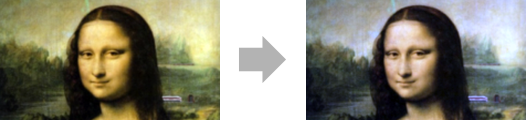
adjusts the colors in image to achieve a balance that simulates the effect of neutral lighting.
ColorBalance[image,ref]
adjusts colors in image so that the reference color specified by ref is mapped to white.
ColorBalance[image,reftarget]
maps the reference color ref to target.
Details and Options
- ColorBalance is typically used for white or gray balancing, removing unrealistic color casts from images. This usually results in representing objects with neutral colors as gray.
- ColorBalance works with images with explicit color spaces. Images with ColorSpace->Automatic are converted to "RGB" or "Grayscale" before being adjusted.
- Either of the ref or target can be any of the following:
-
color explicit color whitepoint named white point as used as a setting for WhitePoint temperature color specified by a temperature {temperature,tint} color specified by a temperature and a tint {pos1,pos2,…} mean color at positions posi in the original image markerimage mean color sampled according to a marker image - The mean color above is computed in the Lab color space.
- The temperature can be specified as a value in Kelvin, typically in the range 2000 K and 20,000 K. The tint can be given in units of
 , typically in the range
  and
and  .
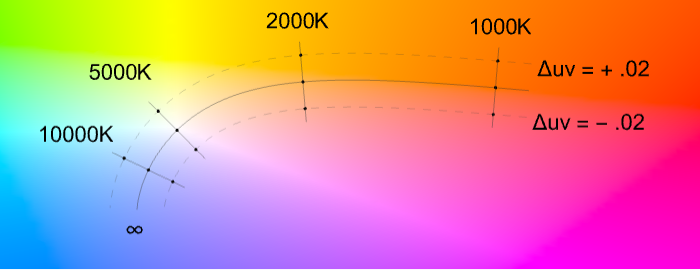
. - Temperature and tint can be visualized in the MacAdam chromaticity diagram below, where the curve corresponds to a radiating blackbody and tint adjustments are moves on isothermal lines, orthogonal to the temperature curve.
- ColorBalance takes a Method option. Possible settings include:
-
"GrayScaling" scaling the mean of the image "RGBScaling" scaling in the RGB space "LMSScaling" scaling in the LMS space "ChromaticityScaling" scaling of the chromaticities in the LMS space - With the method "LMSScaling", the scaling is performed using the Bradford transformation matrix to convert between XYZ and LMS.
- With a given {temperature,tint} pair, Method"ChromaticityScaling" is always used; otherwise, Method->"LMSScaling" is used. »
Examples
open all close allBasic Examples (1)
Scope (8)
Specify the white reference using a specific color:
ColorBalance[[image], RGBColor[0.5, 1., 0.5]]Specify the white region using a list of pixel positions:
ColorBalance[[image], {{22, 9}, {136, 27}, {139, 11}}]Specify the white region using a marker image:
ColorBalance[[image], [image]]Specify the reference white temperature:
ColorBalance[[image], Quantity[4200, "Kelvins"]]Specify the reference white temperature and tint:
ColorBalance[[image], {Quantity[4200, "Kelvins"], .02}]Specify reference and target colors:
ColorBalance[[image], RGBColor[1., 0.85, 0.85] -> GrayLevel[1]]Perform a chromatic adaptation by specifying the reference and target WhitePoint:
ColorBalance[[image], "D50" -> "F6"]Perform a chromatic adaptation by specifying the reference color and the target WhitePoint:
ColorBalance[[image], RGBColor[1., 0.85, 0.85] -> "D50"]Options (6)
Method (6)
Use Method->"RGBScaling" to rescale the image in the RGB space:
ColorBalance[[image], Method -> "RGBScaling"]When a strong color cast is present, scaling the pixels in the RGB space may not fix the color cast:
image = [image];ColorBalance[image, Method -> "RGBScaling"]Use Method->"LMSScaling" to scale the pixels in the LMS space:
ColorBalance[image, Method -> "LMSScaling"]Use Method->"ChromaticityScaling" to make the average color neutral (a shade of gray):
ColorBalance[image, Method -> "ChromaticityScaling"]Use "RGBScaling" with no reference or target colors:
i = [image];ColorBalance[i, Method -> "RGBScaling"]This corresponds to transforming the max color value to 1 for each channel:
% == ImageMultiply[i, 1 / ImageMeasurements[i, "Max"]]"ChromaticityScaling" typically creates a more balanced image:
image = [image];Notice that it is computationally more expensive:
Table[Prepend[AbsoluteTiming[ColorBalance[image, Method -> m]], m], {m, {"RGBScaling", "LMSScaling", "ChromaticityScaling"}}]//Transpose//GridIf the color is specified using temperature and tint, Method->"ChromaticityScaling" is used:
image = ImageResize[ExampleData[{"TestImage", "Peppers"}], 100];ColorBalance[image, Quantity[3800, "Kelvins"], Method -> #]& /@ {Automatic, "RGBScaling", "ChromaticityScaling"}SameQ[%]With no reference or target colors, available methods make assumptions about the image scene:
image = [image];ImageMeasurements[image, "Max"]"RGBScaling" and "LMSScaling" assume that the image contains a white object:
ColorBalance[image, Method -> #]& /@ {"RGBScaling", "LMSScaling"}ImageMeasurements[#, "Max"]& /@ %"ChromaticityScaling" assumes that the average color is neutral (i.e. gray):
ImageMeasurements[image, "Mean"]ColorBalance[image, Method -> "ChromaticityScaling"]ImageMeasurements[%, "Mean"]Applications (4)
Underwater images (2)
Correct a strong blue color cast, assuming there should be some white in the picture:
ColorBalance[[image], Method -> "LMSScaling"]If white pixels are present already, Method"LMSScaling" will have little or no effect:
i = [image];ImageDifference[ColorBalance[i, Method -> "LMSScaling"], i]The default assumption of a neutral average color may yield extreme results:
ColorBalance[i]Manually specify a region where the average color is computed:
ColorBalance[i, Binarize[i, {.5, 1}]]Time of day (1)
The same scene appears differently depending on its illumination:
i = [image];Use a low temperature to simulate early sunrise:
ColorBalance[i, Automatic -> Quantity[4000, "Kelvins"]]5500K is the typical vertical daylight temperature:
ColorBalance[i, Automatic -> Quantity[5500, "Kelvins"]]Use a higher temperature to simulate a hazy sky:
ColorBalance[i, Automatic -> Quantity[7000, "Kelvins"]]Properties & Relations (2)
When an image has dark pixels, ImageAdjust yields a result similar to the "RGBscaling" method:
reddish = [image];
ImageAdjust[reddish] ==
	ColorBalance[reddish, Method -> "RGBScaling"]
The chromatic mapping performed by ColorBalance is generally not invertible:
i = [image];ColorBalance[ColorBalance[i, "D50" -> "D65"], "D65" -> "D50"]% == iPossible Issues (1)
Balancing of a scene illuminated by multiple light sources may present issues.
This scene is lit both by reflected sunlight at dusk and by incandescent light from the street lamps:
i = [image];Balance using the incandescent lamps as reference:
houses = FillingTransform@Binarize[ColorDistance[i, Blue], 1.2]ColorBalance[i, houses -> Quantity[3000, "Kelvins"]]Compare with balancing using the sky and the water reflection:
ColorBalance[i, ColorNegate@houses -> Quantity[8000, "Kelvins"]]Text
Wolfram Research (2015), ColorBalance, Wolfram Language function, https://reference.wolfram.com/language/ref/ColorBalance.html.
CMS
Wolfram Language. 2015. "ColorBalance." Wolfram Language & System Documentation Center. Wolfram Research. https://reference.wolfram.com/language/ref/ColorBalance.html.
APA
Wolfram Language. (2015). ColorBalance. Wolfram Language & System Documentation Center. Retrieved from https://reference.wolfram.com/language/ref/ColorBalance.html