

ImageTrim
ImageTrim[image,roi]
gives the smallest subimage of image that includes the specified region of interest roi.
ImageTrim[image,roi,r]
adds a margin of size r back to the resulting image.
ImageTrim[image,{roi1,roi2,…},…]
extracts multiple subimages specified by roii from image.
ImageTrim[video,…]
extracts the subimages from video.
Details and Options
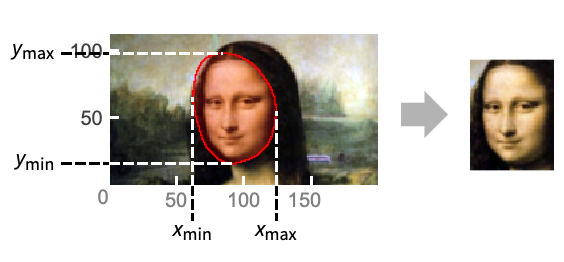
- Image trimming, also known as image cropping, is the process of removing border pixels from an image and is typically used for extracting regions of interest.
- ImageTrim[image,roi] returns a subimage containing the region of interest roi. The region roi can be any of the following:
-
{{x1,y1},…}or {{x1,y1,z1},…} a list of 2D or 3D image positions region a 2D or 3D geometric region (Point, Rectangle, etc.) maskimage nonzero pixels of a 2D or 3D object f a region returned by a function f - For video inputs, the trim specification can be a fixed specification for all frames or a function of time (in seconds from the start).
- ImageTrim assumes the standard image coordinate system.
- For integer coordinate values
 the trimmed image will include all pixels touching the point
  . Coordinates
  lie at the center of pixels. »
 - ImageTrim[image,{pt1,…},{rx,ry}] specifies different horizontal and vertical margins.
- The following options can be given:
-
DataRange Full range of pixel positions in image Padding None padding scheme to use - By default, if fewer elements exist than are requested, ImageTrim returns the elements that are present. By setting the Padding option to anything else, pixels outside the original image can also be included. »
- Possible settings for DataRange include:
-
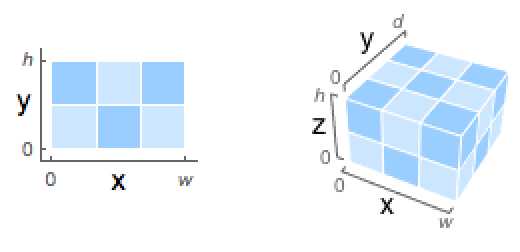
Automatic {{0,1},{0,h/w}} in 2D, {{0,1},{0,d/w},{0,h/w}} in 3D Full {{0,w},{0,h}} in 2D, {{0,1},{0,d},{0,h}} in 3D (default) {{left,right},{bottom,top}} explicit coordinate ranges in 2D {{left,right},{front,back},{bottom,top}} explicit coordinate ranges in 3D
Examples
open all close allScope (7)
Data (3)
ImageTrim[[image], {{30, 30}, {170, 100}}]ImageTrim[\!\(\*VideoBox[""]\), {{160, 20}, {320, 180}}]ImageTrim[[image], {{0, 0, 0}, {50, 50, 16}}]Region of Interest (3)
ImageTrim[[image], {140, 30}]Extract an image containing a list of positions:
ImageTrim[[image], {{0, 10}, {60, 120}}]Specify the region of interest using a graphics primitive:
ImageTrim[[image], Rectangle[{0, 10}, {60, 120}]]Extract an image containing the nonzero pixels of a reference image:
ImageTrim[[image], [image]]Define the region of interest using a function:
ImageTrim[[image], PixelValuePositions[#, Red, .4]&]Trim multiple regions of interest:
ImageTrim[[image], {Rectangle[{0, 10}, {60, 120}], Rectangle[{120, 0}, {165, 100}]}]Trim frames of a video using a region that evolves with time:
ImageTrim[\!\(\*VideoBox[""]\), t {{50t, 50}, {100 + 50t, 150}}]Extract three slices from a 3D image:
i = \!\(\*Graphics3DBox[«10»]\);
ImageTrim[i, {{1, 1, 15}, {46, 46, 17}}]
Trim multiple regions of interest:
ImageTrim[i, {Cuboid[{0, 0, 0}, {23, 23, 23}], Cuboid[{23, 23, 23}, {0, 46, 46}]}]Margin (1)
By default, no extra margin is added to the trimmed regions:
i = [image];ImageTrim[i, Rectangle[{50, 10}, {105, 80}]]This is equivalent to zero margin:
ImageTrim[i, Rectangle[{50, 10}, {105, 80}], 0]ImageTrim[[image], Rectangle[{50, 10}, {105, 80}], 20]Options (2)
DataRange (1)
Remove pixels from each side using the standard coordinate system:
i = [image];ImageTrim[i, {{30, 30}, {170, 90}}]This is equivalent to DataRange->Full:
ImageTrim[i, {{50, 30}, {150, 90}}, DataRange -> Full]Remove 25% of pixels from each side using a scaled coordinate system:
ImageTrim[i, {{.25, .25}, {.75, .75}}, DataRange -> {{0, 1}, {0, 1}}]Padding (1)
Applications (7)
Trim faces detected from an image:
i = [image];ImageTrim[i, FindFaces[i]]Trim lines of detected text from an image:
i = [image];Framed /@ ImageTrim[i, TextRecognize[i, "Line", "BoundingBox"]]//Columni = [image];ImageTrim[i, BarcodeRecognize[i, "BoundingBox"]]Trim the area around the maximum:
ImageTrim[[image], ImageValuePositions[#, "Max"]&, 30]Trim around an object of a specific color:
i = [image];ImageTrim[i, ImageValuePositions[i, Red, .2], 10]Trim areas that contain no keypoints:
i = [image];ImageTrim[i, ImageKeypoints[#, "KeypointStrength" -> .0001]&]Add some margins around keypoints:
ImageTrim[i, ImageKeypoints[#, "KeypointStrength" -> .0001]&, 20]Trim a 3D image to a detected region of interest:
knee = ExampleData[{"TestImage3D", "MRknee"}]roi = DeleteSmallComponents[Erosion[Binarize[knee], 3]]ImageTrim[ knee, roi]Mask the image with the region of interest before trimming:
ImageTrim[roi knee, roi]Properties & Relations (2)
Half-integer coordinates represent the center of the pixels and return the specific pixel:
ImageTrim[[image], {1.5, 1.5}]Integer coordinates yield an image including all neighboring pixels:
ImageTrim[[image], {2, 2}]Show the two pixel positions on the image:
HighlightImage[[image], {Black, PointSize[.1], {2, 2}, {1.5, 1.5}, Dashed, Line[{{1.5, 0}, {1.5, 1.5}, {0, 1.5}}], Line[{{2, 0}, {2, 2}, {0, 2}}]}, Axes -> True, ImageSize -> 200]Trimming with multiple coordinates is the same as using their bounds:
coords = {{137, 117}, {138, 62}, {189, 19}, {193, 133}, {191, 16}, {136, 16}, {150, 26}, {193, 83}, {173, 85}, {175, 29}};
ImageTrim[i = [image], coords]
Compute the coordinate bounds:
bounds = Transpose[CoordinateBounds[coords]]ImageTrim[i, coords] == ImageTrim[i, bounds]Text
Wolfram Research (2010), ImageTrim, Wolfram Language function, https://reference.wolfram.com/language/ref/ImageTrim.html (updated 2021).
CMS
Wolfram Language. 2010. "ImageTrim." Wolfram Language & System Documentation Center. Wolfram Research. Last Modified 2021. https://reference.wolfram.com/language/ref/ImageTrim.html.
APA
Wolfram Language. (2010). ImageTrim. Wolfram Language & System Documentation Center. Retrieved from https://reference.wolfram.com/language/ref/ImageTrim.html