

StippleShading
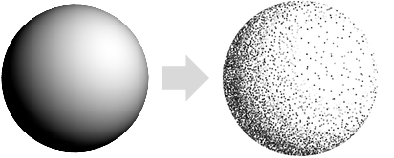
is a three-dimensional graphics directive specifying that objects that follow are to be drawn using small dots.
uses the density d of shading.
StippleShading[col]
uses dots with the specified color col.
StippleShading[d,col]
uses dots of color col with the density d of shading.
Details
- StippleShading is also known as stippling.
- StippleShading is typically used to achieve a drawing effect in which dots are used to convey the shape, texture and lighting of a three-dimensional object.
- StippleShading[d,col] specifies that dots of color col should vary with overall density d.
- The density of dots is driven by the luminosity of the surface. Less dense areas indicate high luminosity.
- The density d is between 0 and 1. A higher density indicates more dots per area.
- The color col can be defined by RGBColor, Hue or any other color specification.
- In StippleShading[d], the color of dots is taken to be Black.
- StippleShading[col] uses a density of 0.5.
- StippleShading[] is effectively equivalent to StippleShading[0.5,Black].
- The setting Lighting"Accent" uses a directional light and faithfully reproduces colors on the surface.
Examples
open all close allBasic Examples (4)
Apply stipple shading to the unit sphere with a directional light:
Graphics3D[{StippleShading[], Sphere[]}, Lighting -> "Accent"]Use stipple shading to show Beethoven with the standard colored lights:
Graphics3D[{StippleShading[], ExampleData[{"Geometry3D", "Beethoven"}, "GraphicsComplex"]}, Boxed -> False, Lighting -> "Accent"]SphericalPlot3D[1 + 2Cos[2θ], {θ, 0, Pi}, {ϕ, 0, 2Pi}, Axes -> False, PlotStyle -> StippleShading[], PlotPoints -> 40 , Mesh -> None]skull = ["skull"]["Graphics3DPrimitives"];Graphics3D[{StippleShading[], skull}, Lighting -> "Accent", Boxed -> False]Scope (13)
Basic Uses (5)
Apply stipple shading to a graphics primitive:
Graphics3D[{StippleShading[], #}, Lighting -> "Accent"]& /@ {Sphere[], CapsuleShape[], Cone[]}Apply stipple shading to a plot:
SphericalPlot3D[1 + 2Cos[2θ], {θ, 0, Pi}, {ϕ, 0, 2Pi}, Axes -> False, PlotStyle -> StippleShading[], PlotPoints -> 40, Lighting -> "Accent" ]Apply stipple shading to a chart:
BarChart3D[Range[5], ChartElements -> [image], ChartStyle -> StippleShading[], Lighting -> "Accent"]Apply stipple shading to a 3D object:
Graphics3D[{StippleShading[], ExampleData[{"Geometry3D", "Beethoven"}, "GraphicsComplex"]}, Lighting -> "Accent"]StippleShading[]Specification (5)
StippleShading with no arguments uses gray tones:
Graphics3D[{StippleShading[], Sphere[]}, Lighting -> "Accent"]Apply stipple shading to the unit sphere with different densities:
Graphics3D[{StippleShading[#], Sphere[]}, Lighting -> "Accent"]& /@ {.2, .4, .7}Use colorized stipple shading:
Graphics3D[{StippleShading[#], Sphere[]}, Lighting -> "Accent"]& /@ {StandardRed, StandardGreen, StandardBlue}Specify both the density and color of the stipple shading:
Graphics3D[{StippleShading[0.8, RGBColor[0.93, 0.27, 0.27]], Sphere[]}, Lighting -> "Accent"]Use LightDarkSwitched to specify different colors for light and dark modes:
graphic = Graphics3D[{StippleShading[LightDarkSwitched[Red, Blue]], Sphere[]}, Lighting -> "Accent"];{LightModePane[graphic], DarkModePane[graphic]}Lighting (3)
StippleShading works with all types of lights:
lights = {{"Ambient", LightGray}, {"Point", White, ImageScaled[{1, 1, 2}]}, {"Directional", White, ImageScaled[{1, 1, 2}]}, {"Spot", White, {{1, -1, 1}, {0, 0, 0}}, Pi / 4}};
Graphics3D[{StippleShading[], Sphere[]}, Lighting -> {#}]& /@ lightsGraphics3D[{StippleShading[], Sphere[]}, Lighting -> {{"Directional", Red, ImageScaled[{1, -0.5, 1}]}, {"Directional", Green, ImageScaled[{-1, -0.5, 1}]}, {"Directional", Blue, ImageScaled[{0, 1, 1}]}, {"Ambient", GrayLevel[0.2]}}]Use "Accent" lighting to faithfully reproduce colors on the surface:
Graphics3D[{StippleShading[], Sphere[]}, Lighting -> #] & /@ {"Accent", Automatic}Applications (1)
Possible Issues (2)
The default light scheme uses several colored light sources:
Graphics3D[{StippleShading[], Sphere[]}]Use a single directional light to get the standard stipple shading effect:
Graphics3D[{StippleShading[], Sphere[]}, Lighting -> {{"Directional", White, ImageScaled[{1, 1, 2}]}}]No shading effect is applied to faces of polygons or filled graphic objects:
Graphics3D[{Red, StippleShading[0], Sphere[]}]Text
Wolfram Research (2020), StippleShading, Wolfram Language function, https://reference.wolfram.com/language/ref/StippleShading.html.
CMS
Wolfram Language. 2020. "StippleShading." Wolfram Language & System Documentation Center. Wolfram Research. https://reference.wolfram.com/language/ref/StippleShading.html.
APA
Wolfram Language. (2020). StippleShading. Wolfram Language & System Documentation Center. Retrieved from https://reference.wolfram.com/language/ref/StippleShading.html