

MaterialShading
MaterialShading["material"]
is a three-dimensional graphics directive specifying that surfaces that follow are to be drawn with the material "material" appearance.
MaterialShading[{"material",col}]
uses the specified color col as the base color.
MaterialShading[parm1val1,parm2val2,…]
uses the specified parameters parms.
Details
- MaterialShading is also known as physically based shading or PBR shader.
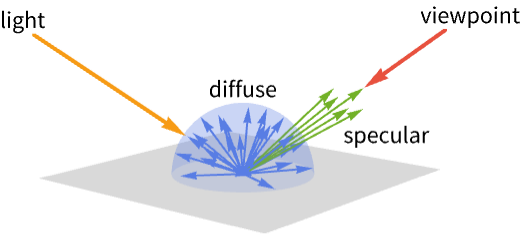
- MaterialShading is typically used to render surfaces in a way that models some key aspect of light and material interaction in the real world.
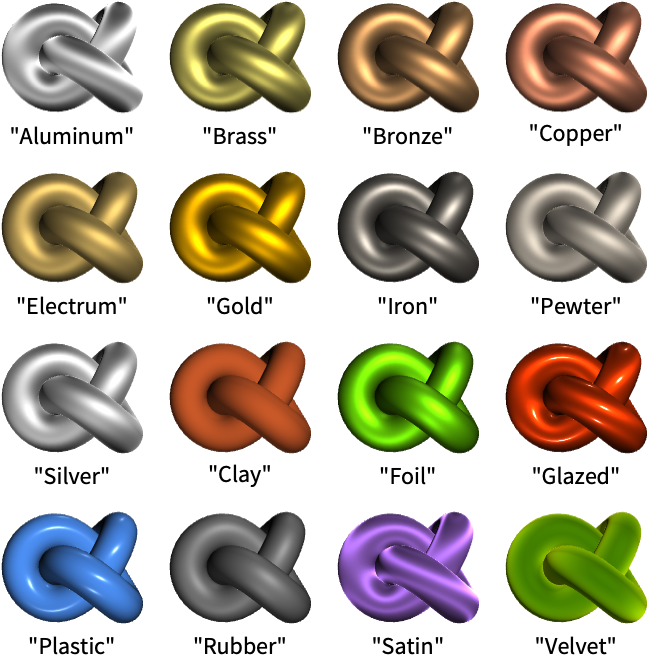
- MaterialShading["material"] specifies that reflectance on the surface should well approximate optical properties of the material "material".
- Possible materials include:
- MaterialShading[{"material",col}] specifies the base color for the material "material".
- MaterialShading[<parm1val1,…>] specifies that reflectance on the surface should approximate the reflectance equation based on physical, geometric and lighting properties parmi.
- Possible color parameters parmi of the material include:
-
"BaseColor" base color of the material "EmissionColor" color of the light emitted accross the surface "SpecularColor" color of the light of a specular reflection - Values vali for color parameters parmi can be given in the following forms:
-
col a color Texture[image] a 2D texture based on an image {…,s} fraction of the color contribution to the final color - Possible physical parameters parmi include:
-
"MetallicCoefficient" metallic coefficient of the materal surface "RoughnessCoefficient" roughness coefficient of the materal surface - Values vali for physical parameters parmi can be given in the following forms:
-
s fraction of the property on the surface Texture[image] a 2D texture based on an image - Possible geometric parameters parmi include:
-
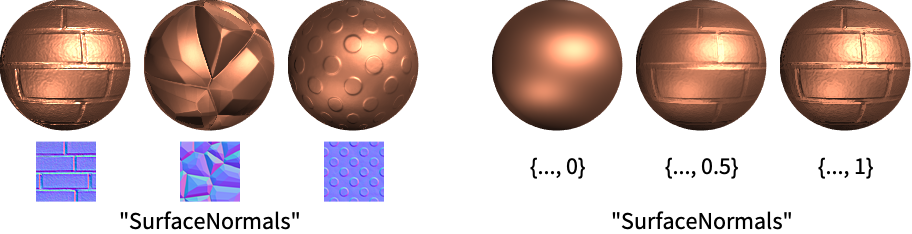
"SurfaceNormals" normal vectors of the surface - Values vali for geometric parameters parmi can be given in the following forms:
-
Texture[image] a 2D texture based on an image {…,s} fraction of surface normals - Possible parameters parmi of the clear coat covering of the material include:
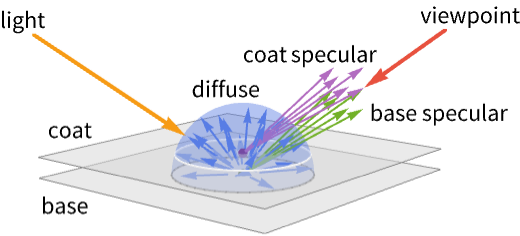
-
"CoatColor" color of the coat covering "CoatRoughnessCoefficient" roughness cooefficient of the coat covering - Possible anisotropy parameters parmi include:
-
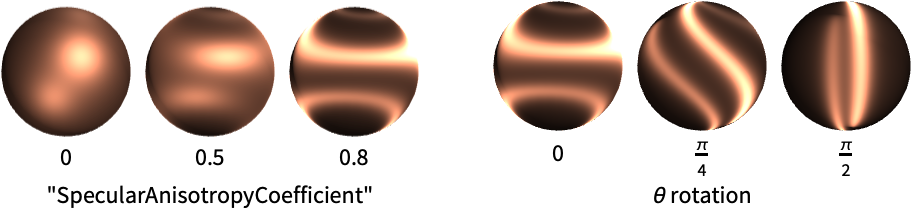
"SpecularAnisotropyCoefficient" anisotropy coefficient of specular reflection "CoatAnisotropyCofficient" anisotropy coefficient of coat reflection - Values vali for anisotropy parameters parmi can be given in the following forms:
-
s fraction of the reflection with respect to the view angle {s,θ} rotation of the reflection - Possible parameters parmi of the material at grazing angles include:
-
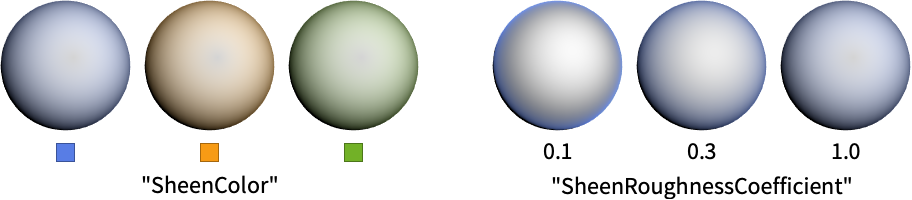
"SheenColor" color of the light of reflections "SheenRoughnessCoefficient" roughness coefficient - Possible light parameters parmi include:
-
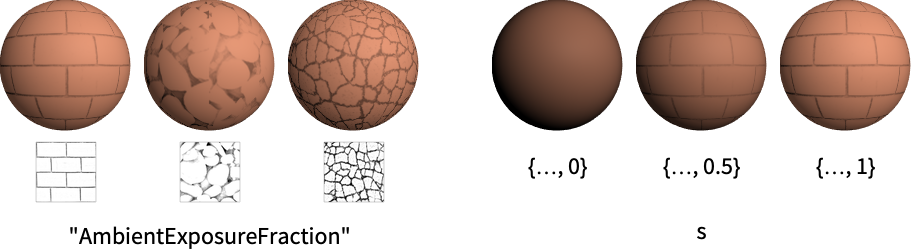
"AmbientExposureFraction" fraction of the ambient light on the surface - Values vali for light parameters parmi can be given in the following forms:
-
s fraction of the ambient light on the surface Texture[image] a 2D texture based on an image - MaterialShading[] is effectively equivalent to MaterialShading[<"BaseColor"White>].
- MaterialShading will override any color, Opacity, Texture, Glow or Specularity settings.


Examples
open all close allBasic Examples (4)
Apply material shading to the unit sphere:
Graphics3D[{MaterialShading["Iron"], Sphere[]}, Lighting -> "ThreePoint"]Graphics3D[{MaterialShading["Bronze"], KnotData["SolomonSeal", "ImageData"]}, Lighting -> "ThreePoint"]Plot3D[Sin[x + y ^ 2], {x, -3, 3}, {y, -2, 2}, PlotPoints -> 80, PlotStyle -> MaterialShading["Copper"], Mesh -> None, Lighting -> "ThreePoint"]Graphics3D[{MaterialShading["Gold"], ExampleData[{"Geometry3D", "Beethoven"}, "GraphicsComplex"]}, Boxed -> False, Lighting -> "ThreePoint"]Scope (15)
Basic Uses (6)
Apply material shading to a graphics primitive:
Graphics3D[{MaterialShading["Iron"], #}, Lighting -> "ThreePoint"]& /@ {Sphere[], CapsuleShape[], Cone[]}Apply material shading to a plot:
SphericalPlot3D[1 + Sin[5ϕ] / 5, {θ, 0, Pi}, {ϕ, 0, 2Pi}, Axes -> False, PlotStyle -> MaterialShading["Gold"], PlotPoints -> 40, Lighting -> "ThreePoint"]Apply material shading to a chart:
BarChart3D[Range[5], ChartElements -> [image], ChartStyle -> MaterialShading["Copper"], Lighting -> "ThreePoint"]Region[Style[MengerMesh[2, 3], MaterialShading["Clay"]], Lighting -> "Accent"]Apply material shading to a 3D object:
Graphics3D[{MaterialShading["Aluminum"], ExampleData[{"Geometry3D", "Galleon"}, "GraphicsComplex"]}, Lighting -> "ThreePoint", Boxed -> False]MaterialShading["Gold"]Specification (6)
Specify a named material preset:
Graphics3D[{MaterialShading["Electrum"], Sphere[]}, Lighting -> "ThreePoint"]Use a material Entity:
Graphics3D[{MaterialShading[Entity["Element", "Copper"]], Sphere[]}, Lighting -> "ThreePoint"]Use a custom base color for a named material:
Graphics3D[{MaterialShading[{"Electrum", Cyan}], Sphere[]}, Lighting -> "ThreePoint"]Specify the material parameters directly:
Graphics3D[{MaterialShading[<|"BaseColor" -> Red, "MetallicCoefficient" -> 1.0, "RoughnessCoefficient" -> 0.8 |>], Sphere[]}, Lighting -> "ThreePoint"]Use LightDarkSwitched to specify different colors for light and dark modes:
graphic = Graphics3D[{MaterialShading[<|"BaseColor" -> LightDarkSwitched[Red, Cyan]|>], Sphere[]}, Lighting -> "ThreePoint"];{LightModePane[graphic], DarkModePane[graphic]}MaterialShading[] with no arguments uses a White base color:
Graphics3D[{MaterialShading[], Sphere[]}, Lighting -> "ThreePoint"]Lighting (3)
MaterialShading works with all types of lights:
lights = {{"Ambient", LightGray}, {"Point", White, ImageScaled[{1, 1, 2}]}, {"Directional", White, ImageScaled[{1, 1, 2}]}, {"Spot", White, {{1, -1, 1}, {0, 0, 0}}, Pi / 4}};
Graphics3D[{MaterialShading["Iron"], Sphere[]}, Lighting -> {#}]& /@ lightsGraphics3D[{MaterialShading["Iron"], Sphere[]}, Lighting -> {{"Directional", Red, ImageScaled[{1, -0.5, 1}]}, {"Directional", Green, ImageScaled[{-1, -0.5, 1}]}, {"Directional", Blue, ImageScaled[{0, 1, 1}]}, {"Ambient", GrayLevel[0.2]}}]Use "ThreePoint" or "Accent" lighting to faithfully reproduce colors on the surface:
Graphics3D[{MaterialShading["Iron"], Sphere[]}, Lighting -> #] & /@ { "ThreePoint", "Accent", Automatic}Applications (14)
Basic Applications (10)
knot = IconizedObject[«[image]»];
materials = {"Aluminum", "Brass", "Bronze", "Copper", "Electrum", "Gold", "Iron", "Pewter", "Silver", "Clay", "Foil", "Glazed", "Plastic", "Rubber", "Satin", "Velvet"};Grid[Partition[Labeled[Graphics3D[{MaterialShading[#], knot}, Lighting -> "ThreePoint", Boxed -> False, ImageSize -> 72, Method -> {"ShrinkWrap" -> True}], #]& /@ materials, 4, 4, 1, {}], Spacings -> {1, 1}]Use the "BaseColor" parameter to set the base color of the material:
Table[Graphics3D[{MaterialShading[<|"BaseColor" -> c|>], Sphere[]}, Lighting -> "ThreePoint"], {c, {RGBColor[0.34398, 0.49112, 0.89936], RGBColor[0.97, 0.606, 0.081], RGBColor[0.91, 0.318, 0.243]}}]Use the "RoughnessCoefficient" parameter to set the shininess of the material:
Table[Graphics3D[{MaterialShading[<|"RoughnessCoefficient" -> r|>], Sphere[]}, Lighting -> "ThreePoint"], {r, {0.15, 0.4, 1.0}}]Use the "SpecularColor" parameter to set the color of the specular highlight on shiny materials:
Table[Graphics3D[{MaterialShading[<|"SpecularColor" -> s, "RoughnessCoefficient" -> 0.3|>], Sphere[]}, Lighting -> "ThreePoint"], {s, {RGBColor[0.34398, 0.49112, 0.89936], RGBColor[0.97, 0.606, 0.081], RGBColor[0.91, 0.318, 0.243]}}]Specular highlights with the base color set to Black:
Table[Graphics3D[{MaterialShading[<|"SpecularColor" -> s, "RoughnessCoefficient" -> 0.3, "BaseColor" -> Black|>], Sphere[]}, Lighting -> "ThreePoint"], {s, {RGBColor[0.34398, 0.49112, 0.89936], RGBColor[0.97, 0.606, 0.081], RGBColor[0.91, 0.318, 0.243]}}]Use the "MetallicCoefficient" parameter to create metallic materials:
Table[Graphics3D[{MaterialShading[<|"MetallicCoefficient" -> m, "RoughnessCoefficient" -> 0.7|>], Sphere[]}, Lighting -> "ThreePoint"], {m, {0, 1}}]Table[Graphics3D[{MaterialShading[<|"BaseColor" -> c, "MetallicCoefficient" -> 1, "RoughnessCoefficient" -> 0.7|>], Sphere[]}, Lighting -> "ThreePoint"], {c, {RGBColor[0.34398, 0.49112, 0.89936], RGBColor[0.97, 0.606, 0.081], RGBColor[0.91, 0.318, 0.243]}}]Use the "SpecularAnisotropyCoefficient" parameter to set the material's preference to reflect light along its tangent direction:
Table[Graphics3D[{MaterialShading[<|"MetallicCoefficient" -> 1, "RoughnessCoefficient" -> 0.7, "SpecularAnisotropyCoefficient" -> a|>], Sphere[]}, Lighting -> "Accent"], {a, {0, 0.5, 1.0}}]Set a custom angle for the tangent direction:
Table[Graphics3D[{MaterialShading[<|"MetallicCoefficient" -> 1, "RoughnessCoefficient" -> 0.7, "SpecularAnisotropyCoefficient" -> {1.0, θ}|>], Sphere[]}, Lighting -> "Accent"], {θ, {0, Pi / 4, Pi / 2}}]Use the "EmissionColor" parameter to set the light emitted by the material itself:
Table[Graphics3D[{MaterialShading[<|"EmissionColor" -> c|>], Sphere[]}, Lighting -> "Accent"], {c, {Red, Green, Blue}}]The emitted color does not require scene lighting:
Graphics3D[{MaterialShading[<|"EmissionColor" -> Red|>], Sphere[]}, Lighting -> None]Use the "SheenColor" parameter to add highlights on the edges of materials:
Table[Graphics3D[{MaterialShading[<|"SheenColor" -> c|>], Sphere[]}, Lighting -> "Accent"], {c, {RGBColor[0.34398, 0.49112, 0.89936], RGBColor[0.97, 0.606, 0.081], RGBColor[0.91, 0.318, 0.243]}}]The "SheenRoughnessCoefficient" parameter sets the concentration of the sheen lighting:
Table[Graphics3D[{MaterialShading[<|"SheenColor" -> RGBColor[0.34398, 0.49112, 0.89936], "SheenRoughnessCoefficient" -> r|>], Sphere[]}, Lighting -> "Accent"], {r, {0.1, 0.9}}]Metallic materials do not have diffuse lighting and appear dark when perfectly smooth:
Graphics3D[{MaterialShading[<|"MetallicCoefficient" -> 1|>], Sphere[]}, Lighting -> "Accent"]Use the "RoughnessCoefficient" parameter to increase the roughness of the metal:
Graphics3D[{MaterialShading[<|"MetallicCoefficient" -> 1, "RoughnessCoefficient" -> #|>], Sphere[]}, Lighting -> "Accent"]& /@ {1 / 3, 2 / 3, 1}The "AmbientExposureFraction" parameter has no effect with directional, point or spot lights:
lights = {{"Directional", White, ImageScaled[{1, 1, 4}]}, {"Point", White, ImageScaled[{1, 1, 2}]}, {"Spot", White, {ImageScaled[{1, 1, 2}], {0, 0, 0}}, Pi / 4}};
Graphics3D[{MaterialShading[<|"AmbientExposureFraction" -> Texture[[image]]|>], Sphere[]}, Lighting -> {#}]& /@ lights
Use an ambient light to view the effect of the "AmbientExposureFraction" parameter:
Graphics3D[{MaterialShading[<|"AmbientExposureFraction" -> Texture[[image]]|>], Sphere[]}, Lighting -> {{"Directional", Gray, ImageScaled[{1, 1, 4}]}, {"Ambient", Gray}}]Photorealistic Materials (4)
Create a nonmetallic matte material:
Graphics3D[{MaterialShading[], Sphere[]}, Lighting -> "ThreePoint"]Use combinations of PBR textures to create semi-realistic materials:
Graphics3D[{MaterialShading[<|"BaseColor" -> Texture[[image]], "SurfaceNormals" -> Texture[[image]]|>], Sphere[]}, ...]Use metallic textures to create metal materials with wear and tear:
Graphics3D[{MaterialShading[<|"BaseColor" -> Texture[[image]], "SurfaceNormals" -> Texture[[image]], "RoughnessCoefficient" -> 0.65, "MetallicCoefficient" -> Texture[[image]] |>], Sphere[]}, Lighting -> "ThreePoint", Boxed -> False, ViewPoint -> Front]Use emission textures to create glowing-hot materials:
Graphics3D[{MaterialShading[<|"BaseColor" -> GrayLevel[0.15], "SurfaceNormals" -> Texture[[image]], "RoughnessCoefficient" -> 0.6, "EmissionColor" -> Texture[[image]] , "SpecularColor" -> GrayLevel[1]|>], Sphere[]}, Lighting -> "Accent", Boxed -> False, ViewPoint -> Right]Properties & Relations (3)
MaterialShading with no arguments approximates the default system appearance:
{Graphics3D[{MaterialShading[], Sphere[]}], Graphics3D[{Sphere[]}]}Graphics3D[{MaterialShading[<|"BaseColor" -> Texture[[image]] |>], Cuboid[]}, Lighting -> "Neutral"]Use VertexTextureCoordinates to specify vertex texture coordinates for a 2D texture:
Graphics3D[{MaterialShading[<|"BaseColor" -> Texture[[image]]|>], Polygon[{{-2, -1, 0}, {2, -1, 0}, {2, 1, 0}, {-2, 1, 0}}, VertexTextureCoordinates -> {{0, 0}, {2, 0}, {2, 1}, {0, 1}}]}]Possible Issues (1)
Neat Examples (1)
With[{c = 0.8}, ContourPlot3D[((x ^ 2 + y ^ 2 - c ^ 2) ^ 2 + (z ^ 2 - 1) ^ 2) ((y ^ 2 + z ^ 2 - c ^ 2) ^ 2 + (x ^ 2 - 1) ^ 2) ((z ^ 2 + x ^ 2 - c ^ 2) ^ 2 + (y ^ 2 - 1) ^ 2), {x, -1.5, 1.5}, {y, -1.5, 1.5}, {z, -1.5, 1.5}, Contours -> {0.1}, ContourStyle -> {MaterialShading[{"Glazed", Red}]}, Boxed -> False, Axes -> False, Background -> GrayLevel[.1], Lighting -> "ThreePoint", Mesh -> False, ViewAngle -> Pi / 10, ViewVertical -> {0, 1, 0}, PlotPoints -> 50]]Text
Wolfram Research (2021), MaterialShading, Wolfram Language function, https://reference.wolfram.com/language/ref/MaterialShading.html.
CMS
Wolfram Language. 2021. "MaterialShading." Wolfram Language & System Documentation Center. Wolfram Research. https://reference.wolfram.com/language/ref/MaterialShading.html.
APA
Wolfram Language. (2021). MaterialShading. Wolfram Language & System Documentation Center. Retrieved from https://reference.wolfram.com/language/ref/MaterialShading.html