



ListStepPlot
ListStepPlot[{y1,y2,…}]
plots the values y1, y2, … in steps at points 1, 2, ….
ListStepPlot[{{x1,y1},{x2,y2},…}]
plots the values y1, y2, … in steps at points x1, x2, ….
ListStepPlot[{data1,data2,…}]
plots data from all the datai.
ListStepPlot[data,step]
plots using steps specified by step.
ListStepPlot[{…,w[datai,…],…}]
plots datai with features defined by the symbolic wrapper w.
Details and Options
- ListStepPlot plots the data so that each point, including the first and last, is part of a horizontal step.
- The following step specifications can be given:
-
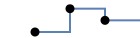
Right step extends to the right 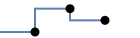
Left step extends to the left 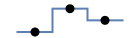
Center step extends to the centers between neighboring points - Data values xi and yi can be given in the following forms:
-
xi a real-valued number Quantity[xi,unit] a quantity with a unit Around[xi,ei] values xi with uncertainty ei Interval[{xmin, xmax}] values between xmin and xmax - Values xi and yi that are not of the form above are taken to be missing and give gaps in the curve.
- The datai have the following forms and interpretations:
-
<"k1"y1,"k2"y2,…> values {y1,y2,…} <x1y1,x2y2,…> key-value pairs {{x1,y1},{x2,y2},…} SparseArray values as a normal array TimeSeries, EventSeries time-value pairs QuantityArray magnitudes WeightedData unweighted values - ListStepPlot[Tabular[…]cspec] extracts and plots values from the tabular object using the column specification cspec.
- The following forms of column specifications cspec are allowed for plotting tabular data:
-
{colx,coly} plot column y against column x {{colx1,coly1},{colx2,coly2},…} plot column y1 against column x1, y2 against x2, … coly, {coly} plot column y as a sequence of values {{coly1},…,{colyi},…} plot columns y1, y2, … as sequences of values - The colx can also be Automatic, in which case sequential values are generated using DataRange.
- ListStepPlot[TimeSeries[…]cspec] and ListStepPlot[EventSeries[…]cspec] extract and plot values from the time or event series using the column specification cspec.
- The following forms of component specifications cspec are allowed for plotting series data:
-
com plot component com against the timestamps {com1,com2,…} plot each component comi against the timestamps - The following wrappers w can be used for the datai:
-
Annotation[datai,label] provide an annotation for the data Button[datai,action] define an action to execute when the data is clicked EventHandler[datai,…] define a general event handler for the data Highlighted[datai,effect] dynamically highlight fi with an effect Highlighted[datai,Placed[effect,pos]] statically highlight fi with an effect at position pos Hyperlink[datai,uri] make the data act as a hyperlink Legended[datai,…] identify the data in a legend PopupWindow[datai,cont] attach a popup window to the data StatusArea[datai,label] display in the status area on mouseover Style[datai,opts] show the data using the specified styles Tooltip[datai,label] attach an arbitrary tooltip to the curve - ListStepPlot takes the same options as Graphics, with the following additions and changes: [List of all options]
-
AspectRatio 1/GoldenRatio ratio of height to width Axes True whether to draw axes ClippingStyle None what to draw when lines are clipped ColorFunction Automatic how to determine the coloring of lines ColorFunctionScaling True whether to scale arguments to ColorFunction DataRange Automatic the range of x values to assume for data Filling None filling under each line FillingStyle Automatic style to use for filling IntervalMarkers Automatic how to render uncertainty IntervalMarkersStyle Automatic style for uncertainty elements LabelingSize Automatic maximum size of callouts and labels Joined True whether to join horizontal segments Mesh None how many mesh points to draw on each line MeshFunctions {#1&} how to determine the placement of mesh points MeshShading None how to shade regions between mesh points MeshStyle Automatic the style for mesh points Method Automatic the method to use PerformanceGoal $PerformanceGoal aspects of performance to try to optimize PlotFit None how to fit a curve to the plot PlotFitElements Automatic fitted elements to show in the plot PlotHighlighting Automatic highlighting effect for curves PlotInteractivity $PlotInteractivity whether to allow interactive elements PlotLabel None overall label for the plot PlotLabels None labels for data PlotLayout "Overlaid" how to position data PlotLegends None legends for datasets PlotMarkers None markers to use to indicate each point PlotRange Automatic range of values to include PlotRangeClipping True whether to clip at the plot range PlotStyle Automatic graphics directives to determine the style of each line PlotTheme $PlotTheme overall theme for the plot ScalingFunctions None how to scale individual coordinates TargetUnits Automatic units to display in the plot - Possible settings for PlotLayout that show multiple curves in a single plot panel include:
-
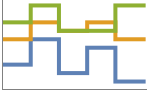
"Overlaid" show all the data overlapping 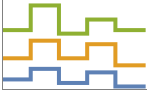
"Stacked" accumulate the data 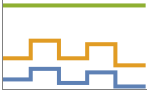
"Percentile" accumulate and normalize the data - The setting DataRange->{xmin,xmax} specifies other ranges of x coordinates to use, with xmax being associated with the last element in the longest of the datai.
- Possible highlighting effects for Highlighted and PlotHighlighting include:
-
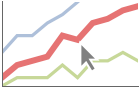
style highlight the indicated curve 
"Ball" highlight and label the indicated point in a curve 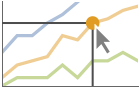
"Dropline" highlight and label the indicated point in a curve with droplines to the axes 
"XSlice" highlight and label all points along a vertical slice 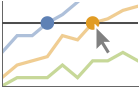
"YSlice" highlight and label all points along a horizontal slice 
Placed[effect,pos] statically highlight the given position pos - Highlight position specifications pos include:
-
x, {x} effect at {x,y} with y chosen automatically {x,y} effect at {x,y} {pos1,pos2,…} multiple positions posi - With the default setting Joined->True, the steps are joined using vertical line segments. Use Joined->False to draw only the steps.
- Use Mesh->Full to draw the points in addition to the steps.
- PlotStylesty specifies the styles to use for each curve. Possible settings include:
-
{sty1,sty2,…} sequence of styles for the datasets <"key"val,…> styling elements for different levels of data - The accepted keys are:
-
"Base" overall style for all the datai "Lists" list of styles styi for each datai - ColorData["DefaultPlotColors"] gives the default sequence of colors used by PlotStyle.
- ScalingFunctions applies to the values xi and yi.
List of all options
Examples
open all close allBasic Examples (5)
Create a plot that stays level until the next point:
ListStepPlot[{1, 1, 2, 3, 5, 8, 13, 21}]Draw the points in the middle of the steps:
ListStepPlot[{1, 1, 2, 3, 5, 8, 13, 21}, Center, Mesh -> Full]

ListStepPlot[Table[{Prime[n], EulerPhi[n]}, {n, 50}]]Plot multiple curves with a legend:
ListStepPlot[{Legended[PrimePi[Range[20]], PrimePi[n]], Legended[EulerPhi[Range[20]], EulerPhi[n]]}]Plot curves without the vertical segments:
ListStepPlot[{1, 1, 2, 3, 5, 8, 13, 21}, Joined -> False]Scope (47)
General Data (7)
Steps are drawn through the data points:
ListStepPlot[{1, 2, 3, 5, 8, 13, 21}]

ListStepPlot[{{1, 1}, {2, 2}, {3, 4}, {5, 8}, {8, 16}, {13, 32}, {21, 64}}]ListStepPlot[{{1, 2, 3, 5, 8, 13, 21}, {1, 2, 4, 8, 16, 32, 64}}]Ranges where the data is nonreal are excluded:
ListStepPlot[{1, 2, 3, None, 5, 6, Missing["NotAvailable"], 8, 9}]ListStepPlot[{1, 2, 3, None, 5, 6, Missing["NotAvailable"], 8, 9}, Joined -> False]Specify what values the data ranges over:
ListStepPlot[{1, 2, 4, 3, 5, 9, 8, 7}, DataRange -> {0, 1}]Use PlotRange to focus in on areas of interest:
{ListStepPlot[Table[x ^ 4 - x ^ 2 + 1, {x, -2, 2, 0.5}]], ListStepPlot[Table[x ^ 4 - x ^ 2 + 1, {x, -2, 2, 0.5}], PlotRange -> {0, 2}]}Use ScalingFunctions to scale the axes:
ListStepPlot[Factorial[Range[20]], ScalingFunctions -> "Log"]Tabular Data (3)
Get tabular data for historical populations of several countries:
tab = Tabular[IconizedObject[«Country populations»]]Plot the population of France from 1940 to 2020:
ListStepPlot[tab -> {"Date", "France"}]Plot the populations of France, Germany and Australia:
ListStepPlot[tab -> {{"Date", "France"}, {"Date", "Germany"}, {"Date", "Australia"}}]Include legends for the plot, using the column names:
ListStepPlot[tab -> {{"Date", "France"}, {"Date", "Germany"}, {"Date", "Australia"}}, PlotLegends -> {"France", "Germany", "Australia"}]Plot all the data in TimeSeries or EventSeries:
ListStepPlot[TimeSeries[TimeEventSeries`TimestampData[Association["UniformlySpacedQ" -> False,
   "Timestamps" -> TabularColumn[Association[
      "Data" -> {7, {{NumericArray[{-248, 118, 298, 638, 865, 1006, 1216}, "Integer32"], {},
          None}}, None},  ...   "Data" -> {{32, 62, 112, 167, 179, 209, 214}, {}, None}, "ElementType" -> "Integer64"]],
         TabularColumn[Association["Data" -> {{30, 49, 81, 125, 142, 174, 177}, {}, None},
           "ElementType" -> "Integer64"]]}}]]]], Association[]]]
Plot a specific component of a TimeSeries or EventSeries:
trees = TimeSeries[TimeEventSeries`TimestampData[Association["UniformlySpacedQ" -> False,
   "Timestamps" -> TabularColumn[Association[
      "Data" -> {7, {{NumericArray[{-248, 118, 298, 638, 865, 1006, 1216}, "Integer32"], {},
          None}}, None},  ...   "Data" -> {{32, 62, 112, 167, 179, 209, 214}, {}, None}, "ElementType" -> "Integer64"]],
         TabularColumn[Association["Data" -> {{30, 49, 81, 125, 142, 174, 177}, {}, None},
"ElementType" -> "Integer64"]]}}]]]], Association[]];ListStepPlot[trees -> "tree 1"]ListStepPlot[trees -> {"tree 1", "tree 2"}]Special Data (6)
Use Quantity to include units with the data:
ListStepPlot[Quantity[Sqrt[Range[10]], "Meters"], AxesLabel -> Automatic]Include different units for the  and
and  coordinates:
data = EntityValue[EntityClass["Element", All], {"AtomicMass", "MeltingPoint"}];ListStepPlot[data, AxesLabel -> Automatic]Plot data in a QuantityArray:
data = QuantityArray[EntityValue[EntityClass["Element", All], {"AtomicMass", "MeltingPoint"}]]ListStepPlot[data, AxesLabel -> Automatic]Specify the units used with TargetUnits:
ListStepPlot[data, TargetUnits -> {Automatic, "Kelvin"}, AxesLabel -> Automatic]Numeric values in an Association are used as the  coordinates:
ListStepPlot[<|"a" -> 2, "b" -> 3, "c" -> 5, "d" -> 7, "e" -> 11, "f" -> 13|>]Numeric keys and values in an Association are used as the  and
and  coordinates:
ListStepPlot[<|2 -> 1, 3 -> 2, 5 -> 3, 7 -> 4, 11 -> 5, 13 -> 6|>]Plot TimeSeries directly:
data = CountryData["UnitedStates", {{"Population"}, {1988, 2013}}]ListStepPlot[data, AxesLabel -> Automatic]Plot data in a SparseArray:
ListStepPlot[SparseArray[Table[Prime[i] -> 1, {i, 25}]]]The weights in WeightedData are ignored:
ListStepPlot[WeightedData[{2, 3, 5, 7, 11, 13, 17, 19, 23, 29}, {1, 2, 3, 4, 5, 6, 7, 8, 9, 10}]]Data Wrappers (8)
Use wrappers on datasets or collections of datasets:
{ListStepPlot[{Style[{1, 2, 3}, Red], {4, 5, 6}}], ListStepPlot[Style[{{1, 2, 3}, {4, 5, 6}}, Blue]]}ListStepPlot[Style[{Style[{1, 2, 3}, Green], {4, 5, 6}}, Blue]]Use the value of each point as a tooltip:
ListStepPlot[Tooltip[Prime[Range[10]]], Center, Mesh -> Full]Use a specific label for all the points:
ListStepPlot[Tooltip[Prime[Range[10]], "primes"], Center, Mesh -> Full]Use PopupWindow to provide additional drilldown information:
ListStepPlot[{1, PopupWindow[2, DateListPlot[FinancialData["IBM", "Jan. 1, 2004"]]], 3}, Center, Mesh -> Full]Button can be used to trigger any action:
ListStepPlot[{1, Button[2, Speak[2]], 3}, Center, Mesh -> Full, PlotStyle -> PointSize[0.05]]Use Annotation for dynamic action when the mouse enters the plot:
{ListStepPlot[Annotation[{1, 1, 2, 3, 5, 8, 13}, "label", "Mouse"]], Dynamic[MouseAnnotation[]]}Use Hyperlink to jump to the specified link when clicked:
ListStepPlot[Hyperlink[{1, 1, 2, 3, 5, 8, 13}, "http://www.wolfram.com"]]Use StatusArea to display a string in the status area of the current notebook:
ListStepPlot[StatusArea[{1, 1, 2, 3, 5, 8, 13}, "String"]]Labeling and Legending (13)
Label data with Labeled:
data = Table[Table[{x, f}, {x, 0, 2Pi, 0.1}], {f, {Sin[x], Sin[2x]}}];ListStepPlot[MapThread[Labeled[#1, #2]&, {data, {Sin[x], Sin[2x]}}]]Label data with PlotLabels:
data = Table[Table[{x, f}, {x, 0, 2Pi, 0.1}], {f, {Sin[x], Sin[2x]}}];ListStepPlot[data, PlotLabels -> {Sin[x], Sin[2x]}]Place the label near the points at an  value:
ListStepPlot[Labeled[Table[{x, Sin[x]}, {x, 0, 2Pi, 0.1}], "sin(x)", 3]]ListStepPlot[Labeled[Table[{x, Sin[x]}, {x, 0, 2Pi, 0.1}], "sin(x)", Scaled[0.25]]]Specify the text position relative to the point:
ListStepPlot[Labeled[Table[{x, Sin[x]}, {x, 0, 2Pi, 0.1}], Sin[x], {Scaled[0.25], Above}]]Label points with automatically positioned text:
ListStepPlot[Sort@Table[Labeled[RandomReal[1, 2], i], {i, 20}]]Place the labels relative to the points:
Table[ListStepPlot[Sort@Table[Labeled[RandomReal[1, 2], i, p], {i, 5}], PlotLabel -> p], {p, {Above, Below, Before, After}}]Specify the maximum size of labels:
data = Table[Labeled[Prime[i], RandomWord[]], {i, 10}];ListStepPlot[data, LabelingSize -> 30]ListStepPlot[data, LabelingSize -> Full]For dense sets of points, some labels may be turned into tooltips by default:
data = Table[Callout[RandomReal[1, 2], i], {i, 200}];ListStepPlot[Sort@data, PlotMarkers -> Automatic]Increasing the size of the plot will show more labels:
ListStepPlot[Sort@data, ImageSize -> 400, PlotMarkers -> Automatic]Include legends for each curve:
data = Table[Table[{x, f}, {x, 0, 2Pi, 0.1}], {f, {Sin[x], Sin[2x]}}];ListStepPlot[data, PlotLegends -> {Sin[x], Sin[2x]}]Use Legended to provide a legend for a specific dataset:
upper = RandomReal[{1.5, 2}, 50];
lower = RandomReal[0.5, 50];ListStepPlot[{lower, Legended[Mean[{lower, upper}], "average"], upper}]Use Placed to change the legend location:
ListStepPlot[{lower, Legended[Mean[{lower, upper}], Placed["average", Below]], upper}]Use association keys as labels:
ListStepPlot[<|"fibonacci" -> Fibonacci[Range[10]], "primes" -> Prime[Range[10]]|>, PlotLabels -> Automatic, PlotLegends -> None]Plots usually have interactive callouts showing the coordinates when you mouse over them:
ListStepPlot[{...}]Including specific wrappers or interactions, such as tooltips, turns off the interactive features:
ListStepPlot[Callout[{...}, "hello", 13]]Choose from multiple interactive highlighting effects:
{ListStepPlot[{{...}, {...}}, PlotHighlighting -> "Dropline"], ListStepPlot[{{...}, {...}}, PlotHighlighting -> "XSlice"]}Use Highlighted to emphasize specific points in a plot:
ListStepPlot[Highlighted[{...}, Placed["Ball", 7]]]ListStepPlot[Highlighted[{...}, Placed["Ball", {{7}, {17}}]]]Presentation (10)
Multiple curves are automatically colored to be distinct:
data = Table[Table[{x, f}, {x, 0, 6}], {f, {x, 2x}}];ListStepPlot[data]Provide explicit styling to different curves:
data = Table[Table[{x, f}, {x, 0, 6}], {f, {x, 2x}}];ListStepPlot[data, PlotStyle -> {Dashed, Red}]Include legends for each curve:
data = Table[Table[{x, f}, {x, 0, 6}], {f, {x, 2x}}];ListStepPlot[data, PlotLegends -> {x, 2x}]Use Legended to provide a legend for a specific dataset:
upper = RandomReal[{1.5, 2}, 50];
lower = RandomReal[0.5, 50];ListStepPlot[{lower, Legended[Mean[{lower, upper}], "average"], upper}]ListStepPlot[Table[{k, Binomial[15, k]}, {k, 0, 15}], AxesLabel -> {k, None}, PlotLabel -> Binomial[15, k]]Provide an interactive Tooltip for the data:
ListStepPlot[Tooltip[Table[Prime[x], {x, 1, 25}]], Mesh -> Full]ListStepPlot[{{1, 2, 4, 8, 16, 32, 64}, {1, 2, 3, 5, 8, 13, 21}}, Filling -> {1 -> {2}}]Use shapes to distinguish different datasets:
ListStepPlot[{Tooltip[{1, 2, 4, 8, 16, 32, 64}, TraditionalForm[2 ^ k]], Tooltip[{1, 2, 3, 5, 8, 13, 21}, TraditionalForm[Fibonacci[k]]]}, Mesh -> Full, PlotMarkers -> Automatic]Use a theme with a dark background and vibrant colors:
ListStepPlot[{Prime[Range[10]], Range[10]}, PlotTheme -> "Marketing"]Plot the data in a stacked layout:
data = {{10, 9, 4, 3, 5, 3, 5, 5, 2, 6}, {2, 10, 5, 6, 9, 4, 9, 3, 7, 2}, {7, 8, 3, 4, 4, 2, 6, 3, 8, 7}};ListStepPlot[data, PlotLayout -> "Stacked"]Options (97)
ClippingStyle (3)
Omit clipped regions of the plot:
ListStepPlot[{1, 2, 3, 4, 99, -99, 6, 7, 8, 9, 10}, ClippingStyle -> None]Show clipped regions as red at the bottom and the top:
ListStepPlot[{1, 2, 3, 4, 99, -99, 6, 7, 8, 9, 10}, ClippingStyle -> Red]Show clipped regions as red at the bottom and dashed at the top:
ListStepPlot[{1, 2, 3, 4, 99, -99, 6, 7, 8, 9, 10}, ClippingStyle -> {Red, Dashed}]ColorFunction (4)
Color with a named color scheme:
ListStepPlot[Accumulate[Range[15]], ColorFunction -> "Rainbow"]Color by scaled  and
and  coordinates:
ListStepPlot[Table[1 / x, {x, 1, 10}], ColorFunction -> Function[{x, y}, Hue[x]]]ListStepPlot[Table[1 / x, {x, 1, 10}], ColorFunction -> Function[{x, y}, Hue[y]]]Fill with the color used for the curve:
ListStepPlot[Sinc[Range[-10, 10, 0.5]], ColorFunction -> Function[{x, y}, Hue[x]], Filling -> Axis]ColorFunction has higher priority than PlotStyle for coloring the curve:
ListStepPlot[Sin[Range[10]], ColorFunction -> "DarkRainbow", PlotStyle -> Directive[Red, Dashed]]ColorFunctionScaling (2)
Color the line based on scaled  value:
ListStepPlot[Table[Sin[x ^ 2] / x, {x, 0.1, 3 Pi / 2, 0.1}], ColorFunction -> Function[{x, y}, Hue[y]], PlotStyle -> Thick, ColorFunctionScaling -> True]Color the line based on unscaled  value:
ListStepPlot[Table[Sin[x ^ 2] / x, {x, 0.1, 3Pi / 2, 0.1}], ColorFunction -> Function[{x, y}, Hue[y]], PlotStyle -> Thick, ColorFunctionScaling -> False]DataRange (5)
Lists of height values are displayed against the number of elements:
ListStepPlot[Table[Log[x], {x, 100, 1000, 100}]]Rescale to the sampling space:
ListStepPlot[Table[Log[x], {x, 100, 1000, 100}], DataRange -> {100, 1000}]DataRange refers to the points, not the steps:
ListStepPlot[{1, 2, 3, 4}, Mesh -> Full, DataRange -> {1, 10}]Specifying DataRange in this case has no effect, since  values are part of the data:
ListStepPlot[{{1, 2}, {3, 4}, {5, 6}}, Mesh -> Full, DataRange -> {1, 10}]By default, pairs of numbers are interpreted as  and
and  coordinates:
ListStepPlot[{{1, 2}, {2, 4}, {6, 8}}, Mesh -> Full]Force interpretation as multiple datasets:
ListStepPlot[{{1, 2}, {2, 4}, {6, 8}}, Mesh -> Full, DataRange -> All]Epilog (1)
Filling (4)
Explicitly specify the filling style for different plots:
data = RandomInteger[20, 15]Table[ListStepPlot[data, Filling -> c], {c, {Top, Bottom, Axis, 10}}]Fills that overlap combine using opacity by default:
ListStepPlot[{Range[10], Prime[Range[10]]}, Filling -> Axis]Fill from the second curve to the first:
ListStepPlot[{Range[10], Prime[Range[10]]}, Filling -> {2 -> {1}}]Fill the region between two curves with light gray:
ListStepPlot[{Range[10], Prime[Range[10]]}, Filling -> {2 -> {{1}, LightGray}}]FillingStyle (3)
ListStepPlot[Table[Mod[81, m], {m, 10, 40}], Filling -> Axis, FillingStyle -> Red]Fill with red below the axis and with blue above:
ListStepPlot[Table[{x, Mod[x, 10] - 5}, {x, 0, 20}], Filling -> Axis, FillingStyle -> {Red, Blue}]ListStepPlot[{Table[{x, Mod[x, 3]}, {x, 0, 10}], Table[{x, Mod[x, 5]}, {x, 0, 10}]}, Filling -> Axis, FillingStyle -> Directive[Opacity[0.5], Orange]]Use a variable filling style obtained from ColorFunction:
ListStepPlot[Table[x Sin[x] / Sqrt[x], {x, 0.2, 3Pi, 0.4}], ColorFunction -> Function[{x, y}, Hue[y]], Filling -> Axis, FillingStyle -> Automatic]Frame (1)
FrameLabel (2)
Place labels on the left edge of the frame:
ListStepPlot[Fibonacci[Range[11]], Frame -> True, FrameLabel -> "Fibonacci numbers"]Place labels on the bottom and left frame edges:
ListStepPlot[Fibonacci[Range[11]], Frame -> True, FrameLabel -> {"n", "nth Fibonacci number"}]GridLines (2)
GridLinesStyle (1)
Joined (3)
By default, the horizontal steps are joined by vertical segments:
ListStepPlot[Fibonacci[Range[11]]]Use Joined->False to create a plot without the vertical segments:
ListStepPlot[Fibonacci[Range[11]], Joined -> False]Keep the first dataset joined but use just horizontal segments for the second dataset:
ListStepPlot[{Table[Prime[n], {n, 10}], Fibonacci[Range[9]]}, Joined -> {True, False}]LabelingSize (4)
Textual labels are shown at their actual sizes:
ListStepPlot[{1, 1, 2, 3, 5, 8} -> {"healthfulness", "obstreperous", "spectrogram", "vestige", "coinage", "limey"}, ImageSize -> Medium]Image labels are automatically resized:
ListStepPlot[{1, 1, 2, 3, 5, 8} -> {[image], [image], [image], [image], [image], [image]}, ImageSize -> Medium]Specify a maximum size for textual labels:
ListStepPlot[{1, 1, 2, 3, 5, 8} -> {"healthfulness", "obstreperous", "spectrogram", "vestige", "coinage", "limey"}, ImageSize -> Medium, LabelingSize -> 30]Specify a maximum size for image labels:
ListStepPlot[{1, 1, 2, 3, 5, 8} -> {[image], [image], [image], [image], [image], [image]}, ImageSize -> Medium, LabelingSize -> 20]Show image labels at their natural sizes:
ListStepPlot[{1, 1, 2, 3, 5, 8} -> {[image], [image], [image], [image], [image], [image]}, ImageSize -> Medium, LabelingSize -> Full]Mesh (4)
Use Mesh->Full to show the point for each step:
ListStepPlot[Mod[Prime[Range[10]], 5], Mesh -> Full]Table[ListStepPlot[Mod[Prime[Range[10]], 5], step, Mesh -> Full, PlotLabel -> step], {step, {Left, Right, Center}}]Use different mesh specifications:
Table[ListStepPlot[Mod[Prime[Range[10]], 5], Mesh -> m, PlotLabel -> Mesh -> m], {m, {All, 15, None, Automatic}}]Use an explicit list of values for the mesh in the  direction:
ListStepPlot[Table[{x, Cos[x]}, {x, 0, 10}], Mesh -> {{0, Pi / 2, Pi, 2Pi, 3Pi}}]Specify style and mesh levels in the  direction:
ListStepPlot[Table[{x, Sin[x]}, {x, 0, 2Pi, 2Pi / 10}], PlotStyle -> StandardGray, Mesh -> {Table[{x, Directive[AbsolutePointSize[5], Hue[x / (2Pi)]]}, {x, 0., 2Pi, 2Pi / 8}]}]MeshFunctions (1)


MeshShading (2)
Alternate red and blue segments of equal width in the  direction:
ListStepPlot[Table[Mod[15, k], {k, 1, 16}], Mesh -> 15, MeshFunctions -> {#1&}, MeshShading -> {Red, Blue}]MeshShading can be used with PlotStyle:
ListStepPlot[Table[Binomial[15, k], {k, 0, 15}], Mesh -> 15, PlotStyle -> Dashed, MeshFunctions -> {#1&}, MeshShading -> {Red, Blue}]MeshStyle (1)
PlotFit (4)
Automatically fit a model to the data:
ListStepPlot[IconizedObject[«data»], PlotFit -> Automatic]Fit a straight line to the data:
ListStepPlot[IconizedObject[«data»], PlotFit -> "Linear"]Fit a quadratic curve to the data:
ListStepPlot[IconizedObject[«data»], PlotFit -> "Quadratic"]Use PowerModel to approximate the data:
ListStepPlot[IconizedObject[«data»], PlotFit -> PowerModel[]]PlotFitElements (3)
By default, the fitted model is shown with the data:
ListStepPlot[IconizedObject[«data»], PlotFit -> Automatic]Plot confidence bands for the data, with a default confidence level of 0.95:
ListStepPlot[IconizedObject[«data»], PlotFit -> Automatic, PlotFitElements -> "BandCurves"]Use a confidence level of 0.5 for the bands:
ListStepPlot[IconizedObject[«data»], PlotFit -> Automatic, PlotFitElements -> {"BandCurves", <|"ConfidenceLevel" -> 0.5|>}]Show residual lines from the data points to the fitted curve when the points are not joined:
ListStepPlot[IconizedObject[«data»], PlotFit -> Automatic, PlotFitElements -> "Residuals"]Combine the original points with red residual lines:
ListStepPlot[IconizedObject[«data»], PlotFit -> Automatic, PlotFitElements -> {"DataPoints", {"Residuals", <|"Style" -> Opacity[1, StandardRed]|>}}]PlotHighlighting (9)
Plots have interactive coordinate callouts with the default setting PlotHighlightingAutomatic:
ListStepPlot[{IconizedObject[«primes»], IconizedObject[«squares»]}]Use PlotHighlightingNone to disable the highlighting for the entire plot:
ListStepPlot[{IconizedObject[«primes»], IconizedObject[«squares»]}, PlotHighlighting -> None]Use Highlighted[…,None] to disable highlighting for a single set:
ListStepPlot[{IconizedObject[«primes»], Highlighted[IconizedObject[«squares»], None]}]Move the mouse over a set of points to highlight it using arbitrary graphics directives:
ListStepPlot[{IconizedObject[«primes»], IconizedObject[«squares»]}, PlotHighlighting -> Directive[Red, AbsolutePointSize[10], DropShadowing[]]]Move the mouse over the points to highlight them with balls and labels:
ListStepPlot[IconizedObject[«primes»], PlotHighlighting -> "Dropline"]Use a ball and label to highlight a specific point of data:
ListStepPlot[Highlighted[IconizedObject[«primes»], Placed["Dropline", 7]]]Move the mouse over the curve to highlight it with a label and droplines to the axes:
ListStepPlot[IconizedObject[«primes»], PlotHighlighting -> "Dropline"]Use a ball and label to highlight a specific point in the plot:
ListStepPlot[Highlighted[IconizedObject[«primes»], Placed["Dropline", 7]]]Move the mouse over the plot to highlight it with a slice showing  values corresponding to the
  position:
ListStepPlot[{IconizedObject[«primes»], IconizedObject[«squares»]}, PlotHighlighting -> "XSlice"]Highlight a particular set of points at a fixed  value:
ListStepPlot[{Highlighted[IconizedObject[«squares»], Placed["XSlice", 14]], IconizedObject[«primes»]}]Move the mouse over the plot to highlight it with a slice showing  values corresponding to the
  position:
ListStepPlot[{IconizedObject[«primes»], IconizedObject[«squares»]}, PlotHighlighting -> "YSlice"]Use a component that shows the points on the plot closest to the  position of the mouse cursor:
ListStepPlot[{IconizedObject[«primes»], IconizedObject[«squares»]}, PlotHighlighting -> "XNearestPoint"]Specify the style for the points:
ListStepPlot[{IconizedObject[«primes»], IconizedObject[«squares»]}, PlotHighlighting -> {"XNearestPoint", <|"Style" -> StandardGray|>}]Use a component that shows the coordinates on the points closest to the mouse cursor:
ListStepPlot[{IconizedObject[«primes»], IconizedObject[«squares»]}, PlotHighlighting -> "XYLabel"]Use Callout options to change the appearance of the label:
ListStepPlot[IconizedObject[«primes»], PlotHighlighting -> {"XYLabel", <|"Appearance" -> "Corners", "CalloutMarker" -> "Circle"|>}]Combine components to create a custom effect:
ListStepPlot[IconizedObject[«primes»], PlotHighlighting -> {{"XNearestPoint", <|"Style" -> StandardGray|>}, {"XYLabel", <|"Appearance" -> "Corners", "CalloutMarker" -> "Circle"|>}}]PlotInteractivity (3)
Plots have interactive highlighting by default:
ListStepPlot[{2, 3, 5, 7, 11, 13, 17, 19, 23, 29}]Turn off all the interactive elements:
ListStepPlot[{2, 3, 5, 7, 11, 13, 17, 19, 23, 29}, PlotInteractivity -> False]Allow provided interactive elements and disable automatic ones:
ListStepPlot[{2, 3, 5, 7, 11, 13, 17, 19, 23, Tooltip[29, "hello"]}, PlotMarkers -> Automatic, PlotInteractivity -> <|"User" -> True, "System" -> False|>]PlotLabel (1)
PlotLabels (5)
Specify text to label sets of points:
ListStepPlot[{Range[0, 2Pi, 0.5]Sin[Range[0, 2Pi, 0.5]], Range[0, 2Pi, 0.5]Cos[Range[0, 2Pi, 0.5]]}, PlotLabels -> {"sine", "cosine"}]Use an Association form to specify labels:
ListStepPlot[{Range[0, 2Pi, 0.5]Sin[Range[0, 2Pi, 0.5]], Range[0, 2Pi, 0.5]Cos[Range[0, 2Pi, 0.5]]}, PlotLabels -> <|"Lists" -> {"sine", "cosine"}|>]Place the labels above the points:
ListStepPlot[{Range[0, 2Pi, 0.5]Sin[Range[0, 2Pi, 0.5]], Range[0, 2Pi, 0.5]Cos[Range[0, 2Pi, 0.5]]}, PlotLabels -> Placed[{"sine", "cosine"}, Above]]Use the keys from an Association as labels:
ListStepPlot[<|"sine" -> Sin[Range[0, 2Pi, 0.5]], "cosine" -> Cos[Range[0, 2Pi, 0.5]]|>, PlotLabels -> Automatic, PlotLegends -> None]Use None to not add a label:
ListStepPlot[{Sin[Range[0, 2Pi, 0.5]], Cos[Range[0, 2Pi, 0.5]]}, PlotLabels -> {"sine", None}]PlotLayout (1)
By default, curves are overlaid on each other:
data = {{10, 9, 4, 3, 5, 3, 5, 5, 2, 6}, {2, 10, 5, 6, 9, 4, 9, 3, 7, 2}, {7, 8, 3, 4, 4, 2, 6, 3, 8, 7}};ListStepPlot[data]Plot the data in a stacked layout:
ListStepPlot[data, PlotLayout -> "Stacked"]Plot the data as percentiles of the total of the values:
ListStepPlot[data, PlotLayout -> "Percentile"]PlotLegends (4)
Generate a legend using labels:
ListStepPlot[{Fibonacci[Range[10]], Prime[Range[10]]}, PlotLegends -> {"fibonacci", "primes"}]Use an Association form to specify legends:
ListStepPlot[{Fibonacci[Range[10]], Prime[Range[10]]}, PlotLegends -> <|"Lists" -> {"fibonacci", "primes"}|>]Legends use the same styles as the plot:
ListStepPlot[{Fibonacci[Range[10]], Prime[Range[10]]}, PlotStyle -> {Red, Blue}, PlotLegends -> {"fibonacci", "primes"}]Place the legend inside the plot:
ListStepPlot[{Fibonacci[Range[10]], Prime[Range[10]]}, PlotStyle -> {Red, Blue}, PlotLegends -> Placed[{"sqrt", "log"}, {0.3, 0.6}]]PlotMarkers (3)
Use PlotMarkers->Automatic to show the point for each step:
ListStepPlot[Mod[Prime[Range[10]], 5], PlotMarkers -> Automatic]Table[ListStepPlot[Mod[Prime[Range[10]], 5], step, PlotMarkers -> Automatic, PlotLabel -> step], {step, {Right, Left, Center}}]Automatically use colors and shapes to distinguish sets of data:
ListStepPlot[Table[p Range[6], {p, {3, 7, 11, 13}}], Center, PlotMarkers -> Automatic, Joined -> False]Use the same symbol for all the sets of data:
ListStepPlot[Table[Table[Mod[p, m], {m, 15, 30}], {p, {30, 40, 50}}], Center, PlotMarkers -> "▲", Joined -> False, Mesh -> Full]PlotRange (3)
PlotRange is automatically calculated:
ListStepPlot[{1, 2, 3, 45, 6, 7, 8}]ListStepPlot[{1, 2, 3, 45, 6, 7, 8}, PlotRange -> All]ListStepPlot[Fibonacci[Range[12]], PlotRange -> {5, 35}]PlotRangePadding (1)
PlotStyle (4)
Use different plot style directives:
Table[ListStepPlot[Table[Binomial[10, k], {k, 0, 10}], PlotStyle -> ps], {ps, {Red, Thick, Dashed, Directive[Red, Thick]}}]By default, different styles are chosen for multiple plots:
ListStepPlot[Table[Table[Sin[k x], {x, 0, 2Pi, 0.3}], {k, {1, 2, 3}}]]Explicitly specify the style for different plots:
ListStepPlot[Table[Table[Sin[k x], {x, 0, 2Pi, 0.3}], {k, {1, 2, 3}}], PlotStyle -> {Red, Orange, Blue}]Use the association-based syntax to set a base style for all data:
ListStepPlot[{IconizedObject[«p»], IconizedObject[«p^2»], IconizedObject[«p^3»]}, PlotStyle -> <|"Base" -> AbsoluteThickness[1]|>]Use a different style for each of the datasets:
ListStepPlot[{IconizedObject[«p»], IconizedObject[«p^2»], IconizedObject[«p^3»]}, PlotStyle -> <|"Lists" -> {StandardGreen, StandardRed, StandardBlue}|>]Provide an overall base style as well as styles for each dataset:
ListStepPlot[{IconizedObject[«p»], IconizedObject[«p^2»], IconizedObject[«p^3»]}, PlotStyle -> <|"Base" -> AbsoluteThickness[1], "Lists" -> {StandardGreen, StandardRed, StandardBlue}|>]PlotTheme (3)
Use a theme with simple styling in a bright color scheme:
ListStepPlot[{Prime[Range[10]], Fibonacci[Range[10]], Range[10]}, PlotTheme -> "Business", Mesh -> Full]ListStepPlot[{Prime[Range[10]], Fibonacci[Range[10]], Range[10]}, PlotTheme -> "Business", PlotStyle -> {StandardRed, StandardOrange, StandardYellow}]Use a theme with minimal styling:
ListStepPlot[{Prime[Range[10]], Fibonacci[Range[10]], Range[10]}, PlotTheme -> "Minimal"]Prolog (1)
ScalingFunctions (9)
By default, plots have linear scales in each direction:
ListStepPlot[{1, 5, 10, 35, 60, 75, 140}]Use a log scale in the  direction:
ListStepPlot[{1, 5, 10, 35, 60, 75, 140}, ScalingFunctions -> "Log"]Use a linear scale in the  direction that shows smaller numbers at the top:
ListStepPlot[{1, 5, 10, 35, 60, 75, 140}, ScalingFunctions -> "Reverse"]Use a reciprocal scale in the  direction:
ListStepPlot[{1, 5, 10, 35, 60, 75, 140}, ScalingFunctions -> "Reciprocal"]Use different scales in the  and
and  directions:
ListStepPlot[{1, 5, 10, 35, 60, 75, 140}, ScalingFunctions -> {"Reverse", "Log"}]Reverse the  axis without changing the
  axis:
axis:
ListStepPlot[{1, 5, 10, 35, 60, 75, 140}, ScalingFunctions -> {"Reverse", None}]Use a scale defined by a function and its inverse:
ListStepPlot[{1, 5, 10, 35, 60, 75, 140}, ScalingFunctions -> {None, {-Log[#]&, Exp[-#]&}}]Positions in Ticks and GridLines are automatically scaled:
ListStepPlot[{1, 5, 10, 35, 60, 75, 140}, ScalingFunctions -> "Log", Ticks -> {Automatic, 2 ^ Range[10]}, GridLines -> {None, 2 ^ Range[10]}]PlotRange and AxesOrigin are automatically scaled:
ListStepPlot[{1, 5, 10, 35, 60, 75, 140}, ScalingFunctions -> "Log", PlotRange -> {1, 100}, AxesOrigin -> {Automatic, 10}]Applications (5)
ListStepPlot[{0, 1, 0, 1, 0, 1, 0, 0, 1, 0, 1, 0, 1, 1, 0}, Center, AxesOrigin -> {0.5, -0.5}, AxesLabel -> {"time", "volts"}, Ticks -> {Range[20], {0, 1}}, AspectRatio -> 1 / 10]Visualize the score in a soccer game:
ListStepPlot[{
	Table[{min, Which[min ≥ 56, 2, min ≥ 19, 1, True, 0]}, {min, 90}],
	Table[{min, Which[min ≥ 31, 1, True, 0]}, {min, 90}]
	}, PlotLegends -> {"Barcelona", "Real Madrid"}, PlotStyle -> Thick,
	PlotRange -> {{0, 90}, All}, AxesLabel -> {"minutes", "goals"}, Ticks -> {Automatic, {0, 1, 2}}, AxesOrigin -> {0, -0.5}]
Show the Fourier series approximation of a square wave:
Show[{Plot[(4 / Pi)Total[Table[(1 / n)Sin[n Pi x], {n, 1, 11, 2}]], {x, 1, 5}], ListStepPlot[{-1, 1, -1, 1}, Right, PlotStyle -> StandardBrown]}]Visualize the number of items in an inventory during a week:
ListStepPlot[{Accumulate@{180, 40, 50, 70, 100, 60, 70}, Accumulate@{30, 80, 50, 70, 50, 50, 110}}, Center, Filling -> {2 -> {1}}, PlotLegends -> {"stock", "sales"}, AxesLabel -> {None, "Items"}, Ticks -> {{{1, "Sun"}, {2, "Mon"}, {3, "Tue"}, {4, "Wed"}, {5, "Thu"}, {6, "Fri"}, {7, "Sat"}}, Automatic}]Plot the atomic radius of the elements:
ListStepPlot[Table[ElementData[z, "AtomicRadius"], {z, 82}], AxesLabel -> {"atomic number", "atomic radius (picometers)"}]
 An Elementary Introduction to the Wolfram Language
Text
Wolfram Research (2015), ListStepPlot, Wolfram Language function, https://reference.wolfram.com/language/ref/ListStepPlot.html (updated 2026).
CMS
Wolfram Language. 2015. "ListStepPlot." Wolfram Language & System Documentation Center. Wolfram Research. Last Modified 2026. https://reference.wolfram.com/language/ref/ListStepPlot.html.
APA
Wolfram Language. (2015). ListStepPlot. Wolfram Language & System Documentation Center. Retrieved from https://reference.wolfram.com/language/ref/ListStepPlot.html