



DistributionChart
DistributionChart[{data1,data2,…}]
makes a distribution chart with a distribution symbol for each datai.
DistributionChart[{data1,data2,…},elems]
makes a distribution chart using the appearance elements elems.
DistributionChart[{…,wi[datai,…],…,wj[dataj,…],…}]
makes a distribution chart with symbol features defined by the symbolic wrappers wk.
DistributionChart[{{data1,data2,…},…}]
makes a distribution chart from multiple groups of datasets {data1,data2,…}.
Details and Options
- DistributionChart is also known as a violin plot.
- DistributionChart draws a representation of the distribution of values in each datai.
- Data elements for DistributionChart can be given in the following forms:
-
datai a pure dataset Quantity[datai,unit] data datai with units wi[datai,…] data veci with wrapper wi formi->mi data with metadata mi - Each datai should be a list of real numbers {y1,y2,…}. Elements yj that are not real numbers are taken to be missing and are excluded. If datai is not a list of real numbers, it is taken to be missing data and will typically result in a gap in the distribution chart.
- Datasets for DistributionChart can be given in the following forms:
-
{data1,data2,…} list of elements with or without wrappers <k1data1,k2data2,…> association of keys and datasets TimeSeries[…],EventSeries[…],TemporalData[…] time series, event series, and temporal data WeightedData[…],EventData[…] augmented datasets w[{data1,data2,…},…] wrapper applied to a grouped dataset w[{{data1,data1,…},…},…] wrapper applied to all grouped datasets - DistributionChart[Tabular[…]cspec] extracts and plots values from the tabular object using the column specification cspec.
- The following forms of column specifications cspec are allowed for plotting tabular data:
-
colx plot a distribution chart for the values in column colx {colx1,colx2,…} plot distribution charts for columns colx1, colx2, … - The following wrappers can be used for the datai:
-
Annotation[e,label] provide an annotation Button[e,action] define an action to execute when the element is clicked Callout[e,label] display the element with a callout EventHandler[e,…] define a general event handler for the element Hyperlink[e,uri] make the element act as a hyperlink Labeled[e,…] display the element with labeling Legended[e,…] include features of the element in a chart legend Mouseover[e,over] make the element show a mouseover form PopupWindow[e,cont] attach a popup window to the element StatusArea[e,label] display in the status area when the element is moused over Style[e,opts] show the element using the specified styles Tooltip[e,label] attach an arbitrary tooltip to the element - Possible appearance elements elems can be of the form:
-
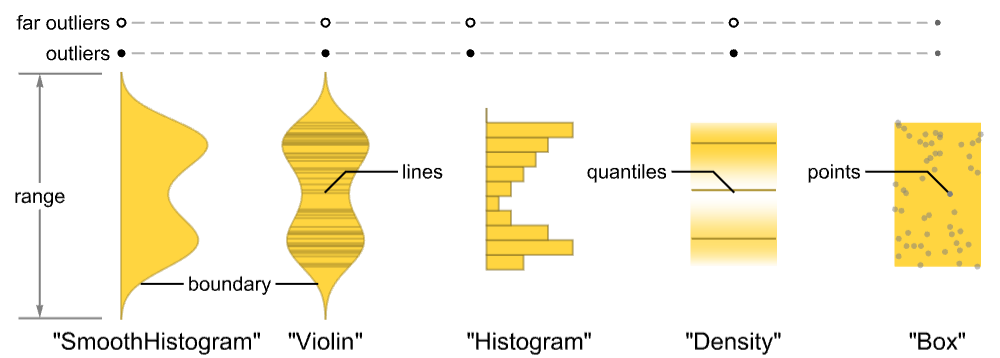
Automatic automatic distribution appearance "name" named distribution appearance "name" {"name",<"prop1"val1,…>} named appearance with property propi set to value vali - Possible named elements "name" include:
- Commonly used properties for appearance elements include:
-
"Alignment" Center how to align element contents "BoundaryStyle" Automatic style to use for the boundary of elements "FarOutlier" None style to use for far outliers "FillingStyle" Automatic filling style for the elements "LineStyle" None style to use for line elements "LineWidth" Automatic how long to draw line elements "Outlier" None style to use for outliers "PointStyle" None style to use for point elements "PointWidth" Automatic how wide to place point elements "Quantiles" None where to draw quantile lines "QuantileShading" None how to shade quantile regions "QuantileStyle" Automatic style to use for quantile lines "Range" Automatic range of values to show with element - Possible settings for "Alignment" include Left, Right, Before, After, Bottom, Top, Below, Above and Center.
- The properties "Outlier" and "FarOutlier" take the following settings:
-
Automatic include outliers without showing None exclude outliers True show outliers style show outliers in style style {marker,style} show outliers with marker marker and style style - "LineWidth" and "PointWidth" control how wide of a region lines and points can be drawn in. Possible settings include:
-
Automatic limit the lines and points to be inside the element boundary All use the full width of the bounding box Scaled[s] use fraction s of the element boundary width s use fraction s of the bounding box width - The "Quantiles" property can take the following settings:
-
None do not show any quantile lines Automatic show quartile lines n show n quantile regions {q1,q2,…} show quantiles q1,q2,… - The following "QuantileShading" settings can be used:
-
None do not shade quantile regions Automatic automatically shade the quantile regions - The property "Range" takes the following settings:
-
All show the full range of elements Automatic automatically determine the range of data to show with element {min,max} show data and element between min and max {Scaled[min],Scaled[max]} show data and element between min and max quantiles - Possible properties for the "SmoothHistogram", "Violin" and "Density" elements include:
-
"Kernel" Automatic smooth density kernel function "Bandwidth" Automatic smooth density bandwidth - The settings for "Kernel" and "Bandwidth" take the same settings as in SmoothKernelDistribution.
- Possible properties for the "Histogram" element include:
-
"Bins" Automatic histogram bins "Height" "PDF" histogram height function - The settings for "Bins" and "Height" take the same settings as in Histogram.
- DistributionChart has the same options as Graphics, with the following additions and changes: [List of all options]
-
AspectRatio 1/GoldenRatio overall ratio of height to width BarOrigin Bottom origin placement for shapes BarSpacing Automatic fractional spacing between shapes ChartBaseStyle Automatic overall style for shapes ChartElementFunction Automatic how to generate raw graphics for shapes ChartLabels None labels for data elements and datasets ChartLayout Automatic overall layout to use ChartLegends None legends for data elements and datasets ChartStyle Automatic style for shapes Frame True whether to draw a frame around the chart LabelingFunction Automatic how to label shapes LabelingSize Automatic maximum size of callouts and labels LegendAppearance Automatic overall appearance of legends Method Automatic what methods to use PerformanceGoal $PerformanceGoal aspects of performance to try to optimize PlotInteractivity $PlotInteractivity whether to allow interactive elements PlotTheme $PlotTheme overall theme for the chart ScalingFunctions None how to scale individual coordinates TargetUnits Automatic units to display in the chart - The following settings for ChartLayout can be used to display multiple sets of data:
-

"Grouped" separate the data for each dataset 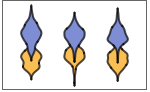
"Overlapped" overlap the data for each dataset - The arguments supplied to ChartElementFunction are the box region {{xmin,xmax},{ymin,ymax}}, the data vector veci, and metadata {m1,m2,…} from each level in a nested list of datasets.
- A list of built-in settings for ChartElementFunction can be obtained from ChartElementData["DistributionChart"].
- With ScalingFunctions->s, the data coordinate is scaled using s.
- Style and other specifications from options and other constructs in DistributionChart are effectively applied in the order ChartStyle, Style and other wrappers, and ChartElementFunction, with later specifications overriding earlier ones.
List of all options
Examples
open all close allBasic Examples (4)
Generate a distribution chart of a list of datasets:
DistributionChart[RandomReal[BetaDistribution[2, 1 / 4], {6, 100}]]data = Table[RandomVariate[BetaDistribution[2, RandomReal[]], 100], {4}, {2}];DistributionChart[data]data = Table[RandomVariate[NormalDistribution[RandomInteger[5], 1], 100], {2}, {3}];DistributionChart[data, PlotLabels -> <|"Elements" -> {"a", "b", "c"}|>]DistributionChart[data, PlotLegends -> <|"Elements" -> {"a", "b", "c"}|>]data = Table[RandomVariate[NormalDistribution[RandomInteger[5], 1], 100], {2}, {3}];DistributionChart[data]Use symmetrical smooth histogram or violin shape:
DistributionChart[data, "Violin"]DistributionChart[data, "Histogram"]Scope (43)
Data and Layouts (17)
DistributionChart[RandomReal[NormalDistribution[], {1, 100}]]DistributionChart[RandomReal[NormalDistribution[], {3, 100}]]Data lists in a dataset are grouped together:
data = RandomVariate[NormalDistribution[0, 1], 100];DistributionChart[{{data, data + 1, data + 2}, {data, data + 1, data + 2}}]Datasets do not need to have the same number of data lists:
data = RandomVariate[NormalDistribution[0, 1], 100];DistributionChart[{{data, data + 1}, {data, data + 1, data + 2, data + 3}}]Nonreal data is taken to be missing and typically yields a gap:
data = RandomVariate[NormalDistribution[0, 1], 100];DistributionChart[{data, Missing[], data, foo, data}, BarSpacing -> 3]Nonreal entries in data lists are omitted:
DistributionChart[{I, 1, 2, Missing[], 3, 4, foo, 5}]DistributionChart[{Quantity[33, "Meters"], Quantity[35, "Meters"], Quantity[12, "Meters"], Quantity[8, "Meters"], Quantity[50, "Meters"], Quantity[15, "Meters"], Quantity[24, "Meters"], Quantity[44, "Meters"], Quantity[4, "Meters"], Quantity[37, "Meters"]}, FrameLabel -> Automatic]DistributionChart[{Quantity[33, "Meters"], Quantity[35, "Meters"], Quantity[12, "Meters"], Quantity[8, "Meters"], Quantity[50, "Meters"], Quantity[15, "Meters"], Quantity[24, "Meters"], Quantity[44, "Meters"], Quantity[4, "Meters"], Quantity[37, "Meters"]}, FrameLabel -> Automatic, TargetUnits -> "Feet"]The time stamps in TimeSeries, EventSeries, and TemporalData are ignored:
d = RandomVariate[NormalDistribution[], 100];DistributionChart[TimeSeries[d, {"May 24, 1982"}]]The values in associations are taken as the heights of the bars:
d1 = RandomVariate[NormalDistribution[0, 1], 100];
d2 = RandomVariate[NormalDistribution[2, 0.5], 100];DistributionChart[<|"a" -> d1, "b" -> d2, "c" -> d1 + d2|>]DistributionChart[<|"a" -> d1, "b" -> d2, "c" -> d1 + d2|>, PlotLabels -> Automatic]DistributionChart[<|"a" -> d1, "b" -> d2, "c" -> d1 + d2|>, PlotLegends -> Automatic, PlotStyle -> {Hue[0.6, 0.7, 0.8], Hue[0.22, 1, 0.7], Hue[0.75, 0.6, 0.7]}]a1 = RandomVariate[NormalDistribution[0, 2], 100];
a2 = RandomVariate[NormalDistribution[2, 1 / 2], 100];
b1 = RandomVariate[ChiDistribution[1], 100];
b2 = RandomVariate[ChiDistribution[3], 100];DistributionChart[<|"group a" -> <|"a" -> a1, "b" -> a2, "c" -> a1 + a2|>, "group b" -> <|"a" -> b1, "b" -> b2, "c" -> b1 + b2|>|>, PlotLegends -> Automatic, PlotLabels -> {Automatic, None}]Use WeightedData to add weights to data:
data = RandomReal[{-1, 1}, 100];wd = WeightedData[data, data ^ 2]DistributionChart[{data, wd}, PlotLabels -> {"data", "weighted data"}]Use EventData to add censoring and truncation information:
event = EventData[data, Round[data]]DistributionChart[{data, event}, PlotLabels -> {"data", "censored data"}]Use wrappers on individual data list, datasets or collections of datasets:
d = RandomVariate[NormalDistribution[0, 1], 100];{DistributionChart[{{d, Style[d + 1, RGBColor[0.93, 0.27, 0.27]], d + 2}, {d, d + 1, d + 2}}],
DistributionChart[{Style[{d, d + 1, d + 2}, RGBColor[0.14, 0.8, 0.14]], {d, d + 1, d + 2}}],
DistributionChart[Style[{{d, d + 1, d + 2}, {d, d + 1, d + 2}}, RGBColor[0.4, 0.6, 1]]]}Inner wrappers take precedence over outer wrappers:
d = RandomVariate[NormalDistribution[0, 1], 100];{DistributionChart[{{d, Style[d + 1, RGBColor[0.93, 0.27, 0.27]], d + 2}, {d, d + 1, d + 2}}],
DistributionChart[{Style[{d, Style[d + 1, RGBColor[0.93, 0.27, 0.27]], d + 2}, RGBColor[0.14, 0.8, 0.14]], {d, d + 1, d + 2}}],
DistributionChart[Style[{Style[{d, Style[d + 1, RGBColor[0.93, 0.27, 0.27]], d + 2}, RGBColor[0.14, 0.8, 0.14]], {d, d + 1, d + 2}}, RGBColor[0.4, 0.6, 1]]]}Override the default tooltips:
d = RandomVariate[NormalDistribution[0, 1], 100];DistributionChart[{d, Tooltip[d + 1, "μ = 1"], d + 2}]Use PopupWindow to provide additional drilldown information:
d = RandomVariate[NormalDistribution[0, 1], 100];DistributionChart[{d, PopupWindow[d + 1, BoxWhiskerChart[d + 1]], d + 2}]Use the other charting functions in a PopupWindow to provide more information:
DistributionChart[Table[PopupWindow[FinancialData[f, {{2010, 1}, {2010, 6}}], TradingChart[{f, {{2010, 1}, {2010, 6}}}, PlotLabel -> f]], {f, {"MSFT", "ORCL", "ADBE"}}]]Button can be used to trigger any action:
d = RandomVariate[NormalDistribution[0, 1], 100];DistributionChart[{d, Button[d + 1, Speak["Mean is 1."]], d + 2}]Tabular Data (2)
penguins = ResourceData["Sample Tabular Data: Palmer Penguins"]Generate a distribution chart for flipper lengths:
DistributionChart[penguins -> "flipper_length"]Create a table with flipper lengths divided into columns by species:.
pivot = PivotToColumns[penguins, "species" -> "flipper_length"]Compare flipper lengths by species:
DistributionChart[pivot -> {ExtendedKey["flipper_length", "Adelie"], ExtendedKey["flipper_length", "Chinstrap"], ExtendedKey["flipper_length", "Gentoo"]}, PlotLabels -> {"Adelie", "Chinstrap", "Gentoo"}]Use abbreviated names for extended keys when the elements are unique:
DistributionChart[pivot -> {"Adelie", "Chinstrap", "Gentoo"}, PlotLabels -> {"Adelie", "Chinstrap", "Gentoo"}]Appearance Elements (9)
Use smooth histograms to show the distributions of values in the data:
DistributionChart[IconizedObject[«data»], "SmoothHistogram"]Use symmetrical smooth histograms or violins to show the distributions of values in the data:
DistributionChart[IconizedObject[«data»], "Violin"]Specify a narrower bandwidth for the smooth histogram:
DistributionChart[IconizedObject[«data»], {"SmoothHistogram", <|"Bandwidth" -> 0.1|>}]Use a triangular kernel function for smoothing:
DistributionChart[IconizedObject[«data»], {"Violin", <|"Kernel" -> "Triangular"|>}]Use a bounded kernel function to remove artificial range:
DistributionChart[IconizedObject[«data»], {"Violin", <|"Kernel" -> {"Bounded", 0, "Gaussian"}|>}]Use binned histograms to show the distributions:
DistributionChart[IconizedObject[«data»], "Histogram"]Use approximately 5 bins with "nice" boundary values:
DistributionChart[IconizedObject[«data»], {"Histogram", <|"Bins" -> 5|>}]DistributionChart[IconizedObject[«data»], {"Histogram", <|"Bins" -> {0.5}|>}]Use density to show the distributions of values in the data:
DistributionChart[IconizedObject[«data»], "Density"]Specify a narrower bandwidth for the smooth histogram:
DistributionChart[IconizedObject[«data»], {"Density", <|"Bandwidth" -> 0.1|>}]Use a triangular kernel function for smoothing:
DistributionChart[IconizedObject[«data»], {"Density", <|"Kernel" -> "Triangular"|>}]Add lines to show the where the values are in the data:
Table[DistributionChart[IconizedObject[«data»], {appearance, <|"LineWidth" -> Automatic|>}, PlotLabel -> appearance], {appearance, {"SmoothHistogram", "Violin", "Density", "Box"}}]Table[DistributionChart[IconizedObject[«data»], {"SmoothHistogram", <|"LineWidth" -> Scaled[width]|>}, PlotLabel -> width], {width, {0, 0.2, 0.5, 1}}]Change the data line color and thickness:
DistributionChart[IconizedObject[«data»], {"SmoothHistogram", <|"LineWidth" -> Scaled[1], "LineStyle" -> Directive[RGBColor[0.98, 0.56, 0.17], AbsoluteThickness[1]]|>}]Add points to show the where the values are in the data:
Table[DistributionChart[IconizedObject[«data»], {appearance, <|"PointWidth" -> Automatic|>}, PlotLabel -> appearance], {appearance, {"Violin", "SmoothHistogram", "Histogram", "SymmetricalHistogram", "Density", "Box"}}]Change the width of points located in the glyph:
Table[DistributionChart[IconizedObject[«data»], {"Violin", <|"PointWidth" -> Scaled[width]|>}, PlotLabel -> Scaled[width]], {width, {0, 0.2, 0.5, 1}}]Change the width of points located in the bounding box:
Table[DistributionChart[IconizedObject[«data»], {"Violin", <|"PointWidth" -> width|>}, PlotLabel -> width], {width, {0, 0.2, 0.5, 1}}]DistributionChart[IconizedObject[«data»], {"Violin", <|"PointWidth" -> Scaled[1], "PointStyle" -> Directive[Opacity[0.75], RGBColor[0.98, 0.56, 0.17], AbsolutePointSize[5]]|>}]Add quantile lines to the glyphs:
Table[DistributionChart[IconizedObject[«data»], {appearance, <|"Quantiles" -> Automatic|>}, PlotLabel -> appearance], {appearance, {"SmoothHistogram", "Violin", "Density", "Box"}}]Specify how many quantiles to add:
DistributionChart[IconizedObject[«data»], {"SmoothHistogram", <|"Quantiles" -> 10|>}]Specify which quantiles to add:
DistributionChart[IconizedObject[«data»], {"SmoothHistogram", <|"Quantiles" -> {0.1, 0.5, 0.9}|>}]DistributionChart[IconizedObject[«data»], {"SmoothHistogram", <|"Quantiles" -> 5, "QuantileStyle" -> RGBColor[0.8, 0.3, 0.8]|>}]Use quantile shading to differentiate quantile regions:
DistributionChart[IconizedObject[«data»], {"SmoothHistogram", <|"Quantiles" -> 5, "QuantileShading" -> True|>}]Change the displaying range of the glyph in percentage:
DistributionChart[IconizedObject[«data»], {"SmoothHistogram", <|"Range" -> {Scaled[0.25], Scaled[0.75]}|>}]Limit the displaying range of the glyph in absolute values:
DistributionChart[IconizedObject[«data»], {"SmoothHistogram", <|"Range" -> {-1, 9}|>}]Table[DistributionChart[IconizedObject[«data»], {"SmoothHistogram", <|"Alignment" -> alignment|>}, PlotLabel -> alignment, ImageSize -> 225], {alignment, {Before, After, Left, Right}}]Styling and Appearance (7)
Use an explicit list of styles for the shapes:
data = Table[RandomVariate[NormalDistribution[μ, 1], 100], {μ, 0, 4, 1}];DistributionChart[data, PlotStyle -> {RGBColor[0.4, 0.6, 1], RGBColor[0.93, 0.27, 0.27], RGBColor[0.14, 0.8, 0.14], RGBColor[1, 0.75, 0], RGBColor[0.67, 0.54, 0.42]}]PlotStyle can be used to set an initial style for all chart elements:
data = Table[RandomVariate[NormalDistribution[μ, 1], 100], {μ, 0, 5, 1}];DistributionChart[data, PlotStyle -> EdgeForm[Dashed]]Style can be used to override styles:
d[μ_] := RandomVariate[NormalDistribution[μ, 1], 100];DistributionChart[{d[1], d[2], Style[d[3], RGBColor[0.93, 0.27, 0.27]], d[4], d[5]}, PlotStyle -> {RGBColor[0.797253, 0.904982, 0.410498], RGBColor[0.934691, 0.945708, 0.75346], RGBColor[0.769879, 0.92369, 0.977371], RGBColor[1, 0.566415, 0.0386511], RGBColor[1, 1, 0.4]}]Use built-in programmatically generated shapes:
ChartElementData["DistributionChart"]data = Table[RandomVariate[NormalDistribution[μ, 1], 100], {μ, 0, 5, 1}];Table[DistributionChart[data, PlotStyle -> {RGBColor[0.8352941176470589, 0.5764705882352941, 0.5607843137254902], RGBColor[0.9490196078431372, 0.29411764705882354, 0.050980392156862744], RGBColor[1., 0.7333333333333333, 0.2], RGBColor[0.996078431372549, 0.9490196078431372, 0.44313725490196076], RGBColor[0.7058823529411765, 0.6862745098039216, 0.30196078431372547], RGBColor[0.41568627450980394, 0.5450980392156862, 0.12156862745098039]}, ChartElementFunction -> cf], {cf, {"Density", "HistogramDensity"}}]For detailed settings, use Palettes ▶ ChartElementSchemes:
DistributionChart[data, PlotStyle -> {RGBColor[0.8352941176470589, 0.5764705882352941, 0.5607843137254902], RGBColor[0.9490196078431372, 0.29411764705882354, 0.050980392156862744], RGBColor[1., 0.7333333333333333, 0.2], RGBColor[0.996078431372549, 0.9490196078431372, 0.44313725490196076], RGBColor[0.7058823529411765, 0.6862745098039216, 0.30196078431372547], RGBColor[0.41568627450980394, 0.5450980392156862, 0.12156862745098039]}, ChartElementFunction -> ChartElementData["GlassQuantile", "Quantile" -> 9, "QuantileShading" -> True]]data = Table[RandomVariate[BetaDistribution[μ, 1 / 4], 100], {μ, 1, 4, 1}];Table[DistributionChart[data, PlotLabel -> o, BarOrigin -> o], {o, {Bottom, Top, Left, Right}}]Adjust the spacing between individuals and groups of shapes:
data = Table[RandomVariate[NormalDistribution[μ, 1], 100], {μ, {0, 1, 2}}];Table[DistributionChart[{data, data}, BarSpacing -> sp, PlotLabel -> sp, PlotStyle -> Opacity[0.8]], {sp, {Automatic, {0, 1}, {-0.3, 1}}}]Use a theme with dark background and high-contrast styles:
data = RandomVariate[NormalDistribution[RandomInteger[5], 1], {3, 3, 100}];DistributionChart[data, PlotTheme -> "Marketing"]Use a theme with bright colors and grid lines:
DistributionChart[data, PlotTheme -> "Business"]Labeling and Legending (8)
Use Labeled to add a label to a shape:
d[μ_] := RandomVariate[NormalDistribution[μ, 1], 100];DistributionChart[{d[1], Labeled[d[2], "label"], d[3]}]Use symbolic positions for label placement:
d[μ_] := RandomVariate[BetaDistribution[μ, 0.5], 100];Table[DistributionChart[{Labeled[d[1], "label", p], d[2], d[3]}, PlotLabel -> p, Frame -> False], {p, {Bottom, Center, Top}}]Table[DistributionChart[{Labeled[d[1], "label", p], d[2], d[3]}, PlotLabel -> p, Frame -> False], {p, {Before, After, Above, Below}}]Provide categorical labels for data elements:
data = Table[RandomVariate[NormalDistribution[μ, 1], 100], {μ, {0, 2}}, {3}];DistributionChart[data, PlotLabels -> <|"Elements" -> {"c1", "c2", "c3"}|>]DistributionChart[data, PlotLabels -> <|"Groups" -> {"r1", "r2"}|>]DistributionChart[data, PlotLabels -> <|"Groups" -> {"r1", "r2"}, "Elements" -> {"c1", "c2", "c3"}|>]Use Placed to control the positioning of labels, using the same positions as for Labeled:
data = Table[RandomVariate[NormalDistribution[μ, 1], 100], {μ, {0, 2}}, {3}];DistributionChart[data, PlotLabels -> <|"Groups" -> Placed[{"r1", "r2"}, Above], "Elements" -> Placed[{"c1", "c2", "c3"}, Center]|>]Provide value labels for shapes by using LabelingFunction:
data = Table[RandomVariate[NormalDistribution[μ, 1], 100], {μ, {0, 2}}, {3}];DistributionChart[data, LabelingFunction -> (Placed[Mean[#], Tooltip]&)]Use Placed to control placement and formatting:
labeler[v_, {i_, j_}, {ri_, cj_}] := Placed[Row[{ri[[1]], cj[[1]]}, ","], Center, Rotate[#, Pi / 4]&]DistributionChart[data, PlotLabels -> <|"Groups" -> {"r1", "r2"}, "Elements" -> {"c1", "c2", "c3"}|>, LabelingFunction -> labeler]Add categorical legend entries for data elements:
data = Table[RandomVariate[NormalDistribution[μ, 1], 100], {μ, {0, 2}}, {3}];DistributionChart[data, PlotLegends -> <|"Elements" -> {"ccc1", "ccc2", "ccc3"}|>, PlotStyle -> <|"Elements" -> {RGBColor[0.761959, 0.470832, 0.940597], RGBColor[0.9584254999999999, 0.877884, 0.5906629999999999], RGBColor[0.431296, 0.709773, 0.927077]}|>]DistributionChart[data, PlotLegends -> <|"Groups" -> {"rr1", "rr2"}|>, PlotStyle -> <|"Groups" -> {RGBColor[0.761959, 0.470832, 0.940597], RGBColor[0.431296, 0.709773, 0.927077]}|>]Use Legended to add additional legend entries:
d[μ_] := RandomVariate[NormalDistribution[μ, 1], 100];DistributionChart[{d[1], Legended[d[2], "extra"], d[3]}, PlotLegends -> <|"Elements" -> {"ccc1", "ccc2", "ccc3"}|>, PlotStyle -> {RGBColor[0.761959, 0.470832, 0.940597], RGBColor[0.9584254999999999, 0.877884, 0.5906629999999999], RGBColor[0.431296, 0.709773, 0.927077]}]DistributionChart[Legended[{d[1], d[2], d[3]}, "extra"], PlotLegends -> {"ccc1", "ccc2", "ccc3"}, PlotStyle -> {RGBColor[0.761959, 0.470832, 0.940597], RGBColor[0.9584254999999999, 0.877884, 0.5906629999999999], RGBColor[0.431296, 0.709773, 0.927077]}]Use Placed to affect the positioning of legends:
data = Table[RandomVariate[NormalDistribution[μ, 1], 100], {μ, {0, 2}}, {3}];Table[DistributionChart[data, PlotLegends -> <|"Elements" -> Placed[{"ccc1", "ccc2", "ccc3"}, p]|>, PlotStyle -> <|"Elements" -> {RGBColor[0.761959, 0.470832, 0.940597], RGBColor[0.9584254999999999, 0.877884, 0.5906629999999999], RGBColor[0.431296, 0.709773, 0.927077]}|>, ImageSize -> 225], {p, {Below, Above}}]Options (32)
AspectRatio (3)
By default, DistributionChart uses a fixed height to width ratio for the plot:
DistributionChart[IconizedObject[«data»]]Make the height the same as the width with AspectRatio1:
DistributionChart[IconizedObject[«data»], AspectRatio -> 1]AspectRatioFull adjusts the height and width to tightly fit inside other constructs:
plot = DistributionChart[IconizedObject[«data»], AspectRatio -> Full];
{Framed[Pane[plot, {100, 150}]], Framed[Pane[plot, {100, 100}]], Framed[Pane[plot, {150, 100}]]}
BarOrigin (1)
BarSpacing (4)
DistributionChart automatically selects the spacing between bars:
Table[DistributionChart[RandomVariate[NormalDistribution[], {n, 100}]], {n, {1, 2, 4, 8}}]Table[DistributionChart[RandomVariate[NormalDistribution[], {n, 2, 100}]], {n, {2, 4}}]Table[DistributionChart[RandomVariate[NormalDistribution[], {5, 100}], BarSpacing -> s, PlotLabel -> s], {s, {Tiny, Small, Medium, Large}}]Table[DistributionChart[RandomVariate[NormalDistribution[], {3, 2, 100}], BarSpacing -> s, PlotLabel -> s], {s, {Tiny, Small, Medium, Large}}]Use explicit spacing between shapes:
Table[DistributionChart[RandomVariate[NormalDistribution[], {5, 100}], BarSpacing -> s, PlotLabel -> s], {s, {0.25, 0.5, 1, 2}}]Table[DistributionChart[RandomVariate[NormalDistribution[], {4, 2, 100}], BarSpacing -> s, PlotLabel -> s], {s, {{0.25, 0.5}, {0, 1}}}]DistributionChart[RandomVariate[NormalDistribution[], {5, 100}], BarSpacing -> None]DistributionChart[RandomVariate[NormalDistribution[], {3, 2, 100}], BarSpacing -> {None, 1}]ChartElementFunction (5)
Get a list of built-in settings for ChartElementFunction:
ChartElementData["DistributionChart"]For detailed settings, use Palettes ▶ ChartElementSchemes:
data = RandomReal[NormalDistribution[], {5, 100}];Table[DistributionChart[data, ChartElementFunction -> f], {f, {"Quantile", "DensityQuantile", "FadingQuantile", "GlassQuantile"}}]Table[DistributionChart[data, ChartElementFunction -> f], {f, {"Density", "HistogramDensity", "LineDensity", "PointDensity"}}]Shade the default violin bars according to density:
DistributionChart[RandomVariate[NormalDistribution[0, 1], {8, 100}], ChartElementFunction -> ChartElementData["SmoothDensity", "ColorScheme" -> "DeepSeaColors"]]Use bands to mark decile boundaries:
Table[DistributionChart[RandomVariate[NormalDistribution[], {5, 100}], ChartElementFunction -> ChartElementData[f, "QuantileShading" -> True, "Quantile" -> 10]], {f, {"Quantile", "DensityQuantile", "FadingQuantile", "GlassQuantile"}}]Write a custom ChartElementFunction:
quantileBead[{{xmin_, xmax_}, {ymin_, ymax_}}, data_, metadata_] := Module[{min, max, lq, uq, median}, {min, lq, median, uq, max} = Quantile[data, {0, 0.1, 0.5, 0.9, 1}];
	{Line[{{(xmin + xmax) / 2, min}, {(xmin + xmax) / 2, max}}],
	Polygon[{{xmin, median}, {(xmin + xmax) / 2, uq}, {xmax, median}, {(xmin + xmax) / 2, lq}}]}
]DistributionChart[RandomReal[NormalDistribution[0, 1], {3, 100}], PlotStyle -> {RGBColor[0.8352941176470589, 0.5764705882352941, 0.5607843137254902], RGBColor[0.9490196078431372, 0.29411764705882354, 0.050980392156862744], RGBColor[1., 0.7333333333333333, 0.2]}, ChartElementFunction -> quantileBead]ChartLayout (2)
ChartLayout is grouped by default:
data = RandomVariate[NormalDistribution[0, 1], {2, 3, 100}];DistributionChart[data]DistributionChart[RandomVariate[NormalDistribution[0, 1], {4, 2, 100}], ChartLayout -> "Overlapped", ChartBaseStyle -> Opacity[0.3]]LabelingFunction (2)
By default, bars have tooltips with a summary table of the data:
DistributionChart[RandomVariate[NormalDistribution[], {5, 20}]]Define a labeling function and place it in the tooltip:
label[data_, index_, label_] := Grid[{{"Case:", index[[2]]}, {"Year:", label[[2, 1]]}, {"μ:", Mean[data]}}, Alignment -> {{Right, Left}}]DistributionChart[RandomVariate[NormalDistribution[], {5, 20}], LabelingFunction -> (Placed[label[##], Tooltip]&), ChartLabels -> Placed[Range[2005, 2009], None]]LabelingSize (4)
Textual labels are shown at their actual sizes:
DistributionChart[RandomVariate[NormalDistribution[], {5, 20}], ChartLabels -> {"healthfulness", "obstreperous", "spectrogram", "vestige", "coinage", "limey"}]Image labels are automatically resized:
DistributionChart[RandomVariate[NormalDistribution[], {5, 20}], PlotLabels -> Placed[{[image], [image], [image], [image], [image]}, Axis]]Specify a maximum size for textual labels:
DistributionChart[RandomVariate[NormalDistribution[], {5, 20}], PlotLabels -> {"healthfulness", "obstreperous", "spectrogram", "vestige", "coinage", "limey"}, LabelingSize -> 50]Specify a maximum size for image labels:
DistributionChart[RandomVariate[NormalDistribution[], {5, 20}], PlotLabels -> {[image], [image], [image], [image], [image]}, LabelingSize -> 30]Show image labels at their natural sizes:
DistributionChart[RandomVariate[NormalDistribution[], {5, 20}], PlotLabels -> {"healthfulness", "obstreperous", "spectrogram", "vestige", "coinage", "limey"}, LabelingSize -> Full, ImageSize -> Medium]Method (1)
Use bar widths proportional to the square root of the data sizes:
data = Table[RandomReal[NormalDistribution[], i], {i, {100, 400, 900, 1600}}];DistributionChart[data, Method -> {"BoxWidth" -> "Scaled"}, PlotLabels -> Length /@ data]Put bars on fixed positions with varying bar spacing:
DistributionChart[data, Method -> {"BoxWidth" -> "Scaled", "EqualSpacing" -> False}, PlotLabels -> Length /@ data]DistributionChart[data, Method -> {"BoxWidth" -> "Fixed"}]PerformanceGoal (3)
Generate a distribution chart with interactive highlighting:
DistributionChart[RandomVariate[NormalDistribution[], {5, 20}], PerformanceGoal -> "Quality"]Emphasize performance by disabling interactive behaviors:
DistributionChart[RandomVariate[NormalDistribution[], {5, 20}], PerformanceGoal -> "Speed"]Typically, less memory is required for non-interactive charts:
Table[ByteCount@DistributionChart[RandomVariate[NormalDistribution[], {5, 100}], PerformanceGoal -> p], {p, {"Quality", "Speed"}}]PlotInteractivity (4)
Charts with a moderate number of bars automatically have tooltips and mouseover effects:
DistributionChart[{IconizedObject[«Subscript[data, 1]»], IconizedObject[«Subscript[data, 2]»], IconizedObject[«Subscript[data, 3]»], IconizedObject[«Subscript[data, 4]»]}]Turn off all the interactive elements:
DistributionChart[{IconizedObject[«Subscript[data, 1]»], IconizedObject[«Subscript[data, 2]»], IconizedObject[«Subscript[data, 3]»], IconizedObject[«Subscript[data, 4]»]}, PlotInteractivity -> False]Interactive elements provided as part of the input are disabled:
DistributionChart[{IconizedObject[«Subscript[data, 1]»], IconizedObject[«Subscript[data, 2]»], IconizedObject[«Subscript[data, 3]»], Tooltip[IconizedObject[«Subscript[data, 4]»], "hello"]}, PlotInteractivity -> False]Allow provided interactive elements and disable automatic ones:
DistributionChart[{IconizedObject[«Subscript[data, 1]»], IconizedObject[«Subscript[data, 2]»], IconizedObject[«Subscript[data, 3]»], Tooltip[IconizedObject[«Subscript[data, 4]»], "hello"]}, PlotInteractivity -> <|"User" -> True, "System" -> False|>]PlotTheme (1)
Use a theme with bright colors and grid lines:
data = RandomVariate[NormalDistribution[RandomInteger[5], 1], {3, 3, 100}];DistributionChart[data, PlotTheme -> "Business"]Add a theme with frame and vertical lines:
DistributionChart[data, PlotTheme -> {"Business", "FrameGrid"}]DistributionChart[data, PlotTheme -> {"Business", "FrameGrid"}, GridLinesStyle -> LightRed]ScalingFunctions (2)
Linear scale is used by default:
DistributionChart[RandomReal[NormalDistribution[50, 10], {3, 100}]]
DistributionChart[RandomReal[NormalDistribution[50, 10], {3, 100}], ScalingFunctions -> "Log"]When logarithm scale is used, non-positive data is dropped automatically:
data = Range[50] - 25DistributionChart[{data}, ScalingFunctions -> "Log"]Applications (2)
Compare the distribution of salaries for several departments at a university:
salaries = ExampleData[{"Statistics", "UniversitySalaries"}, "DataElements"];
depts = {"Mathematics", "History", "English", "Chemistry", "Law", "Physics", "Statistics"};
data = Table[Cases[salaries, {d, _, salary_, "A"} :> salary], {d, depts}];
all = Cases[salaries, {_, _, salary_, "A"} :> salary];DistributionChart[data, PlotLabels -> Placed[{depts, Length /@ data}, {Axis, Center}], ChartStyle -> 54, GridLines -> {{{Median[all], Gray}}, None}, BarOrigin -> Left]Compare different time slices for a random process:
data = Table[RandomVariate[WienerProcess[2, 3][t], 10 ^ 3], {t, {1, 4, 7, 10, 13}}];DistributionChart[data, PlotLabels -> {1, 4, 7, 10, 13}]Properties & Relations (6)
Use BoxWhiskerChart to show the distribution of data:
data = Table[RandomVariate[NormalDistribution[μ, 1], 100], {μ, 0, 4, 1}];BoxWhiskerChart[data]BoxWhiskerChart is a special case of DistributionChart:
data = Table[RandomVariate[NormalDistribution[μ, 1], 100], {μ, 0, 4, 1}];DistributionChart[data, "BoxWhisker"]Use Histogram and SmoothHistogram to visualize lists of data vectors:
data = Table[RandomVariate[NormalDistribution[μ, 1], 200], {μ, 0, 8, 4}];{Histogram[data, Automatic, "PDF"], SmoothHistogram[data]}The default shapes used by DistributionChart are effectively generated using SmoothHistogram:
data = RandomVariate[NormalDistribution[], 25];{DistributionChart[data, BarOrigin -> Left], SmoothHistogram[data]}Use QuantilePlot and ProbabilityPlot to compare data to distributions:
data = RandomVariate[NormalDistribution[0, 1], 200];{QuantilePlot[data], ProbabilityPlot[data]}Use Histogram3D and SmoothHistogram3D to visualize 2D data:
data = RandomVariate[NormalDistribution[2, 1], {200, 2}];{Histogram3D[data], SmoothHistogram3D[data]}Text
Wolfram Research (2010), DistributionChart, Wolfram Language function, https://reference.wolfram.com/language/ref/DistributionChart.html (updated 2025).
CMS
Wolfram Language. 2010. "DistributionChart." Wolfram Language & System Documentation Center. Wolfram Research. Last Modified 2025. https://reference.wolfram.com/language/ref/DistributionChart.html.
APA
Wolfram Language. (2010). DistributionChart. Wolfram Language & System Documentation Center. Retrieved from https://reference.wolfram.com/language/ref/DistributionChart.html